Create your licence and your setup file
Spider's server images and licence come from the Floocus Portal. The Portal also writes the setup.yaml you give to Helm, so you do not start from the long values reference.
One command does this step, the Helm install and the first checks for you.
1. Account and organisation
- Open app.floocus.com and use Register. You receive a one-time code by email.
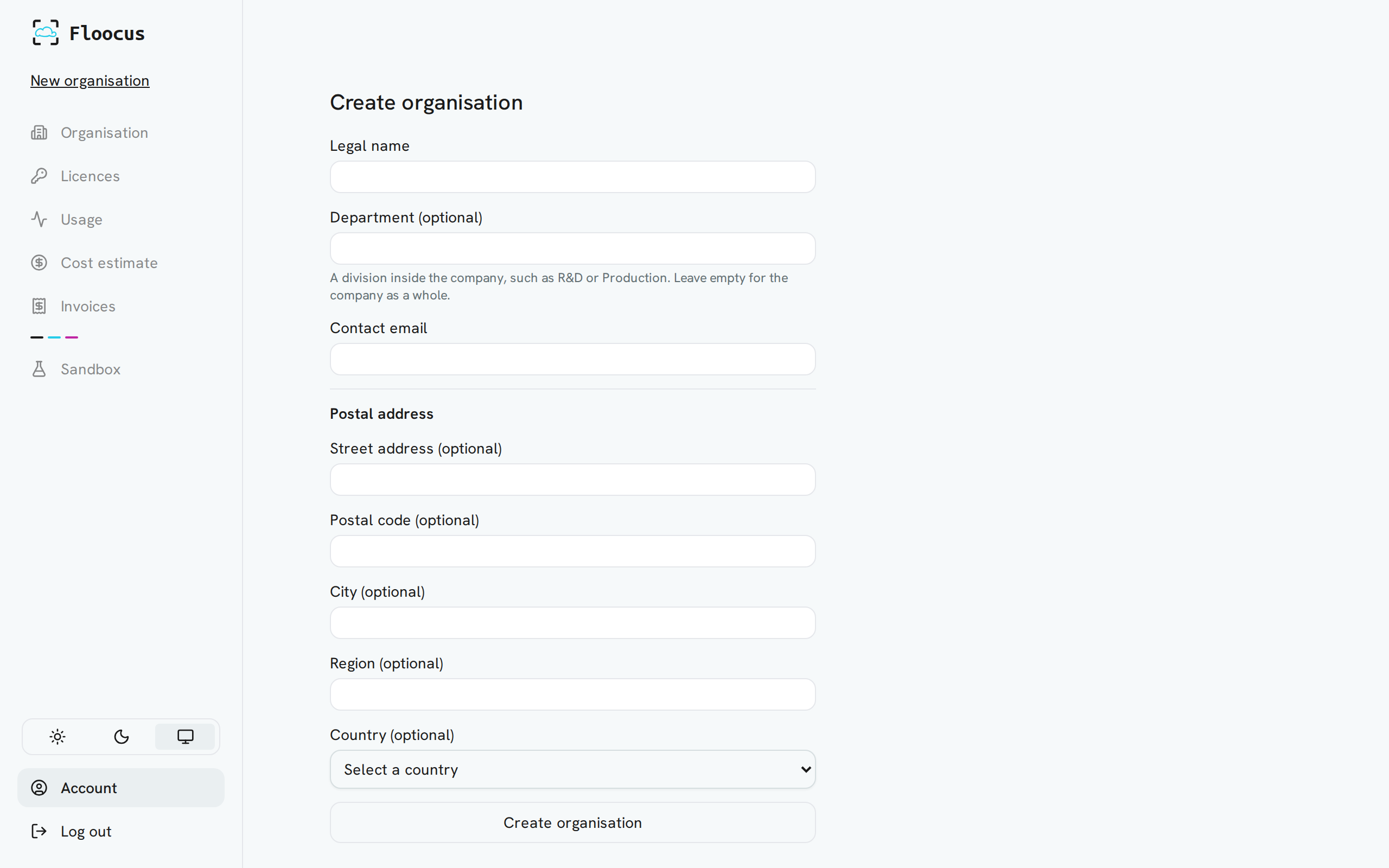
- Create your organisation: its legal name and a contact email are enough.
2. Get your licence
Open Licences in the left menu.
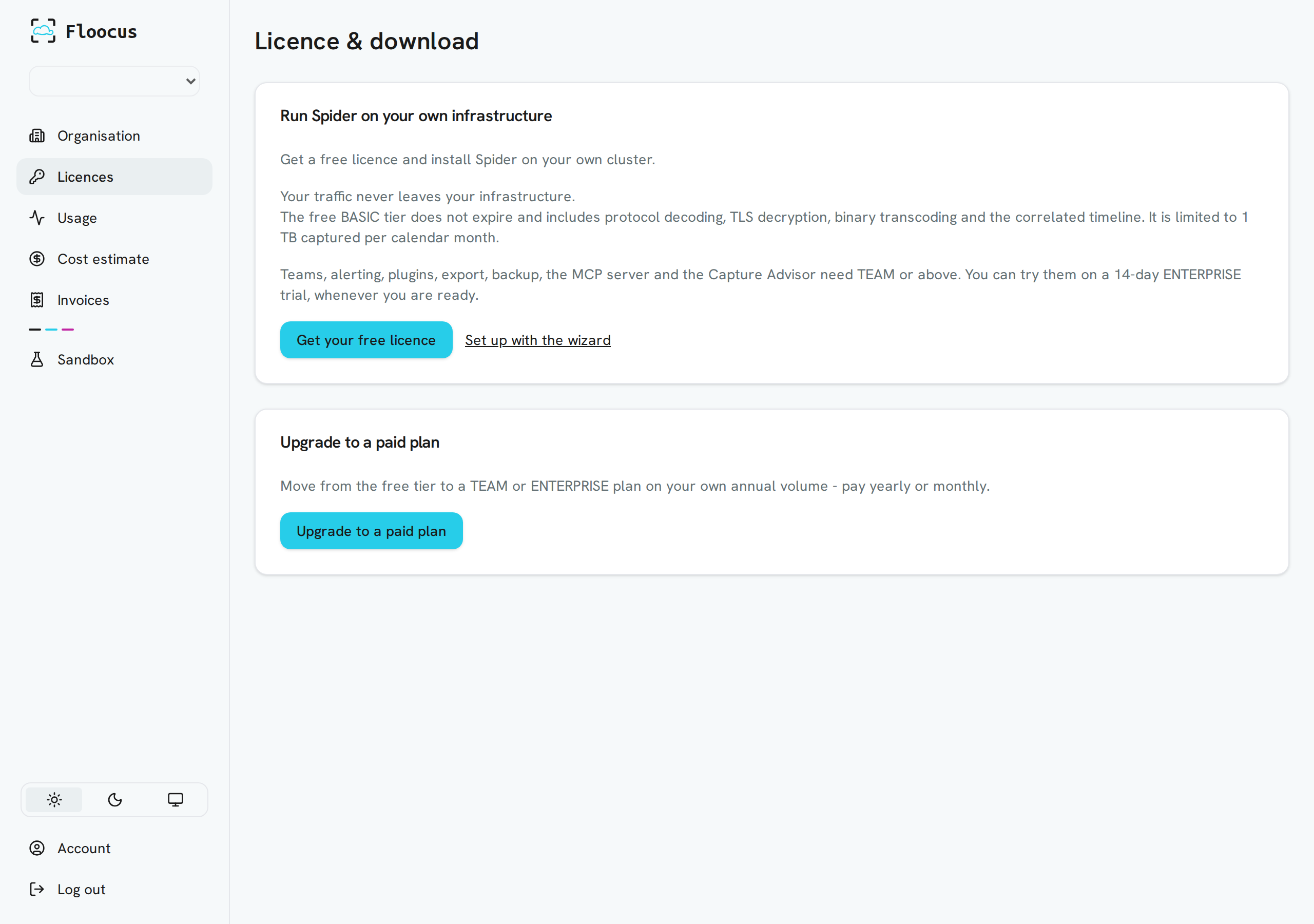
- Get your free licence creates the free BASIC licence in one click and downloads a ready-made
values.yaml. - Set up with the wizard asks a few questions first and writes a complete
setup.yaml. Use this one: it is the path this guide follows. - Upgrade to a paid plan moves you to TEAM or ENTERPRISE, on your own yearly volume, paid yearly or monthly.
Your organisation's first licence is the free BASIC tier: it does not expire and is limited to 1 TB captured per calendar month.
You can upgrade it later, so you do not need to decide now.
You can also start a 14-day ENTERPRISE trial: open the licence in the Portal and use the Trial card (Start your 14-day trial). One trial per organisation, ever.
When the trial ends, Spider keeps running and returns to the free tier.
Features that deploy extra pods (Capture Advisor, export...) are off in a BASIC setup.yaml: to use them during the trial, regenerate the file with them on and run helm upgrade.
3. Answer the wizard
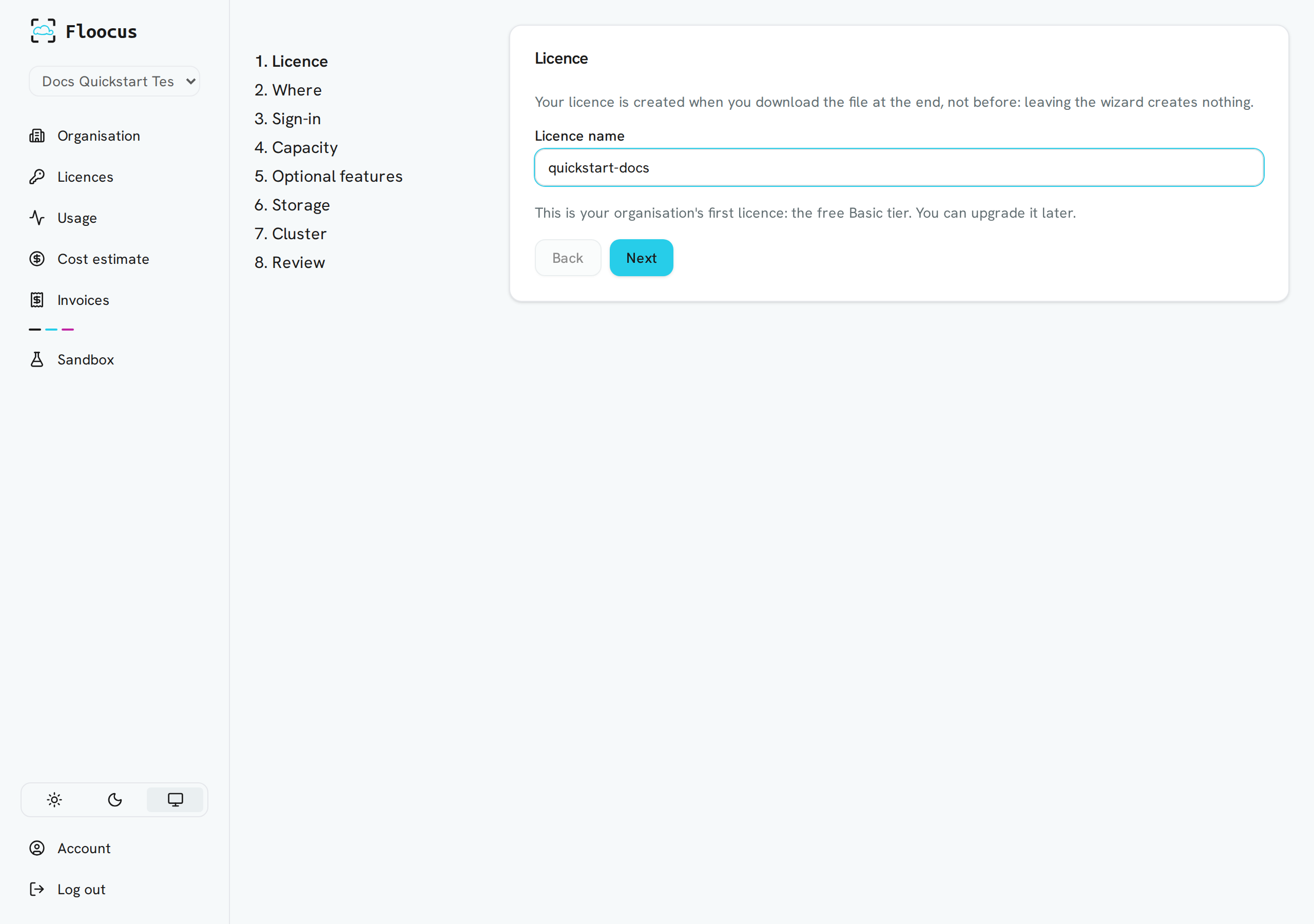
The wizard has eight steps. The licence is created only when you download the file at the end: leaving the wizard creates nothing.
| Step | What you decide | Typical answer |
|---|---|---|
| Licence | A name for the licence | Anything |
| Where | The host name people use to reach Spider, HTTPS, the ingress class and TLS secret | Your own DNS name. Tick the host-resolution box if cluster DNS cannot resolve it (typical for a lab) |
| Sign-in | The admin account, optional SMTP, local accounts, LDAP and OIDC (ENTERPRISE) | Admin only. SMTP, LDAP and OIDC can wait |
| Capacity | Lab, Small or Production | Lab to try Spider out |
| Optional features | Extra parsers and features, with the pods each one adds | Leave the defaults, add what you need |
| Storage | S3 backup and export, private CA | Skip |
| Cluster | ECK (Elasticsearch operator), pod and service CIDR ranges, reduced pod count | See Install |
| Review | The generated setup.yaml and the install commands | Download |
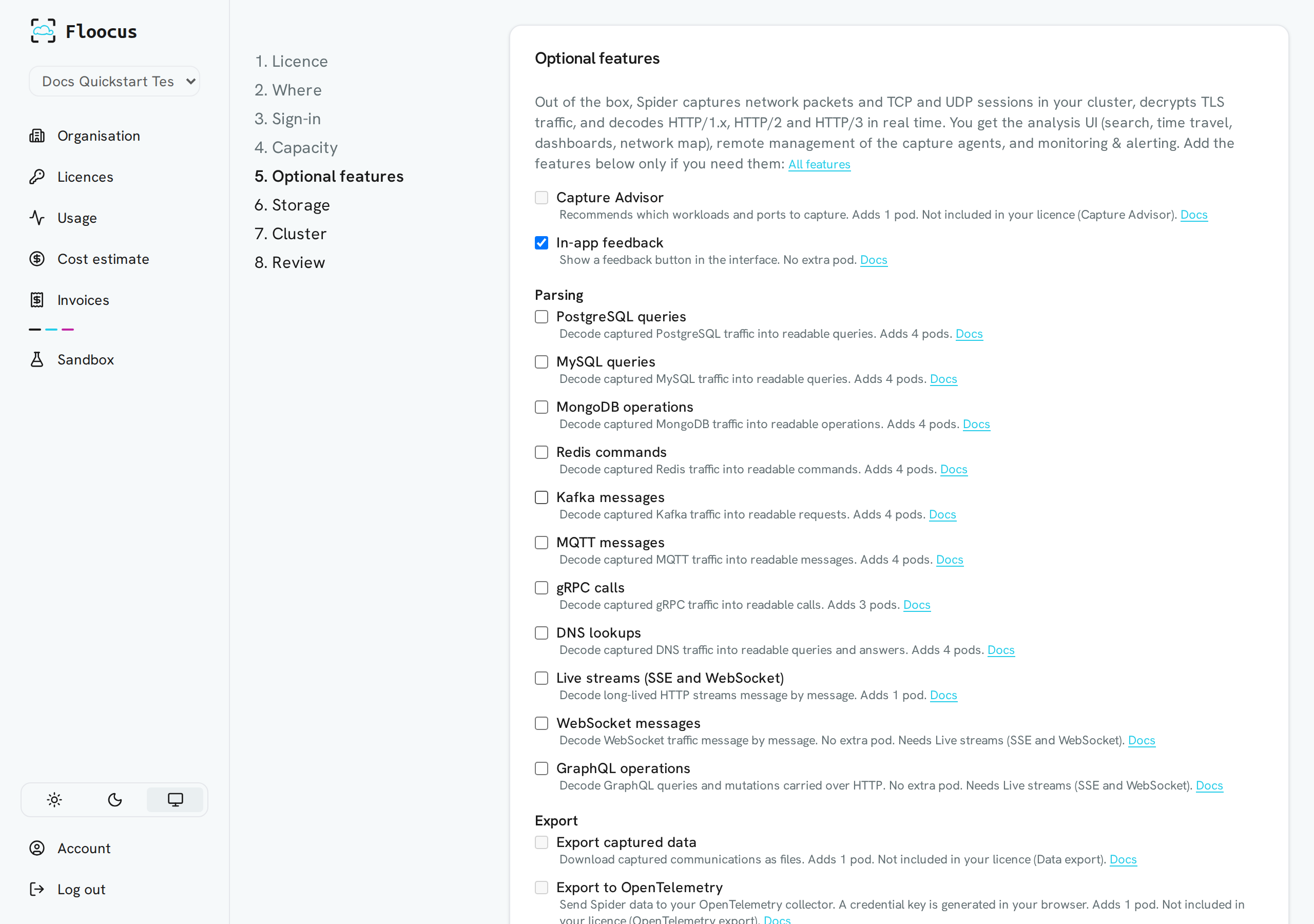
Out of the box Spider captures packets and TCP and UDP sessions, decrypts TLS and decodes HTTP/1.x, HTTP/2 and HTTP/3. The Optional features step lists the other protocol parsers and tells you how many pods each adds, so you choose with the footprint in view. Features your tier does not include, such as the Capture Advisor on BASIC, are shown as Not included in your licence.
4. Download and keep two things
On Review, click Create licence and download setup.yaml. It holds your licence key, licence private key and registry login, and Floocus does not keep a copy.
Keep:
- the downloaded
setup.yaml. It is a secret: do not commit it. - the admin password shown once on the last step. Spider has no default password. The file only holds its hash.
Cluster keys are generated in your browser and never sent to Floocus.
The licence page has a Lost your values.yaml? card with a Regenerate values.yaml button.
It rotates the licence key, licence private key and registry password, so every existing install of this licence must be updated.
It gives you a plain values.yaml with the new keys: click Customize setup.yaml to re-run the wizard with them, otherwise your host, features and capacity choices are lost.
The new admin password only applies to new installs: the admin account is seeded on first install, not on helm upgrade.
Next, install Spider.