Capture Advisor
The Capture Advisor helps you set up a capture and enrich it, from the Analysis UI:
- The Set up capture wizard plans, applies and observes the capture of a Kubernetes namespace.
- The Suggest button of the whisperer Parsing Config editors proposes request templates and tags mined from captured traffic.
- The Link ids button finds business ids shared across protocols or between services.
The Advisor is available when your administrator has enabled it (see Installing the Capture Advisor) and your licence includes the ADVISOR capability.
Otherwise the buttons and entry points described here are not displayed.
They are also hidden in public-link sessions.
The same operations exist in the Spider CLI and in the MCP server.
Set up capture wizard
Concept
Capturing a namespace normally means knowing which workloads to attach a whisperer to, which port speaks which protocol, and which parsing flags to turn on. The wizard works this out from the traffic Spider already sees between workloads (the network usage map), shows you the result, and writes it only when you confirm.
Starting the wizard
The wizard opens as a panel on the right of the screen. Four entry points:
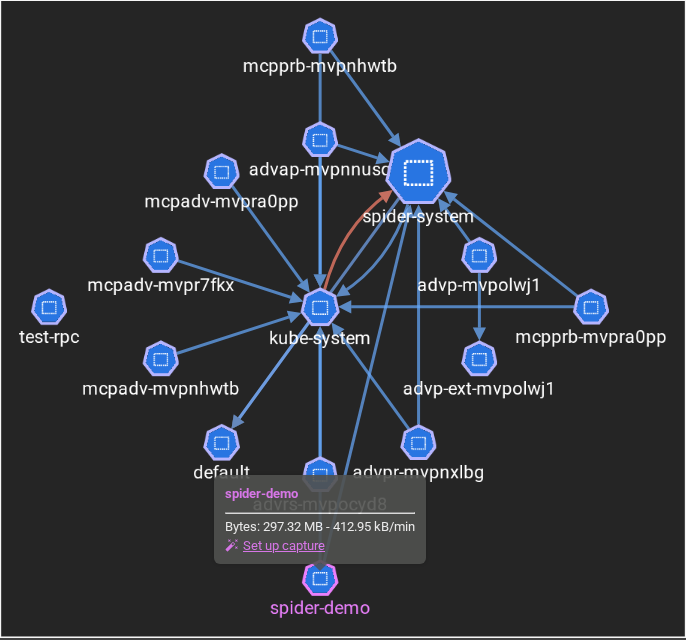
- Namespace on the usage map: hover a namespace node and click Set up capture in its tooltip. Clicking the node itself still filters the data.
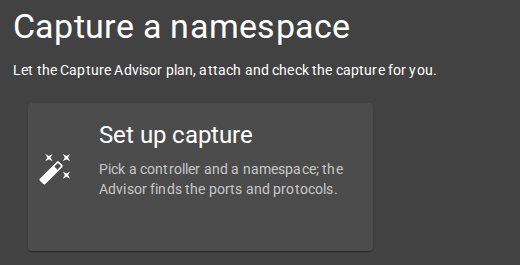
- Help screen: the Set up capture card, under Capture a namespace. The wizard starts by asking for a controller.
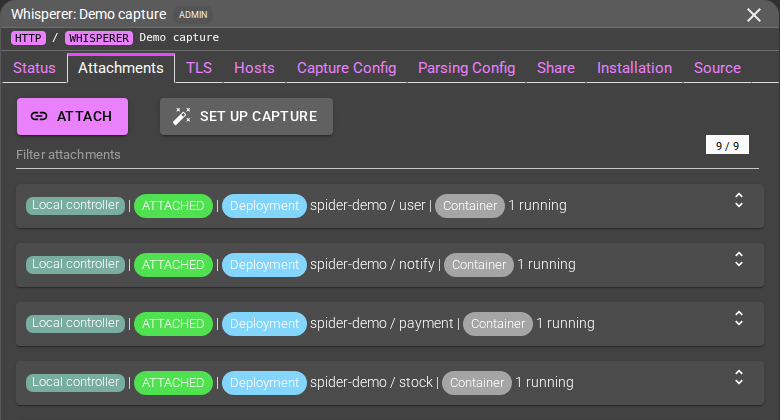
- Whisperer, Attachments tab: the Set up capture button, to extend an existing whisperer. Only INTERFACE (real-time capture) whisperers get it. A whisperer without a single controller starts on the controller choice.
- Run badge: a namespace or a whisperer with a capture in progress shows a Capture in progress badge (or Capture abandoned (can be restored)). Click it to resume.
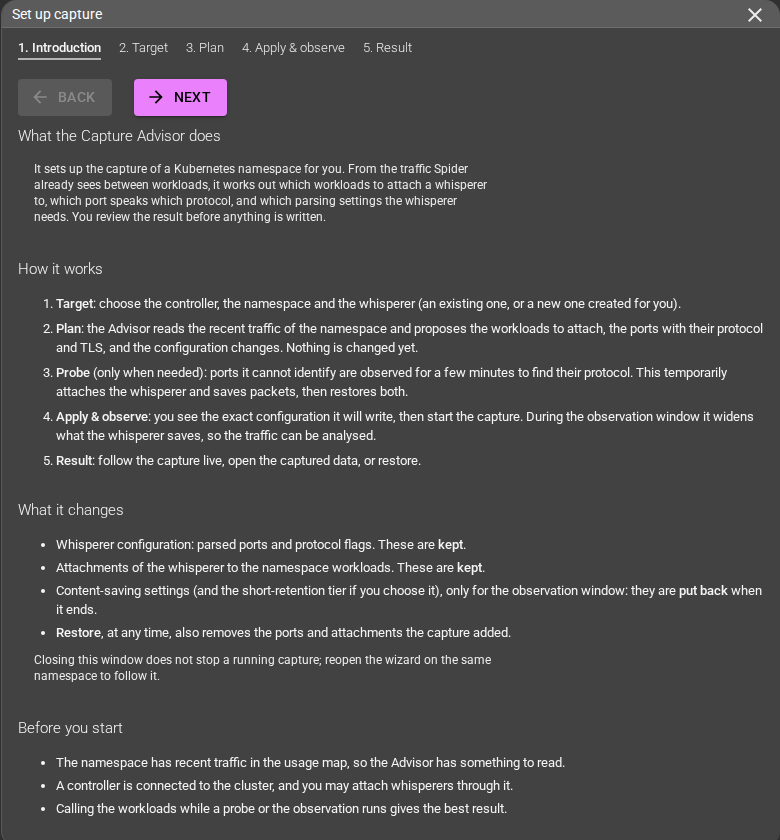
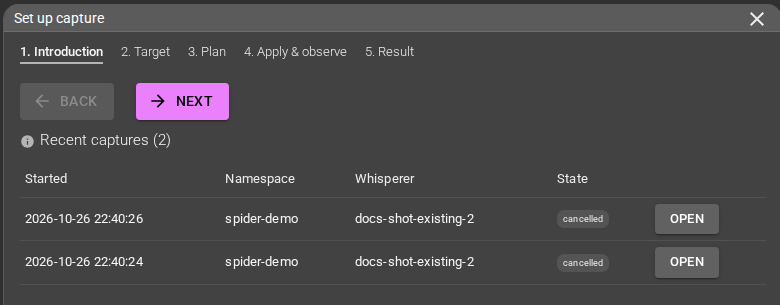
The steps are shown at the top of the panel: 1. Introduction, 2. Target, 3. Plan, 4. Probe, 5. Apply & observe, 6. Result. The Probe step is only there when a port needs a probe or a probe has run (a port with no protocol guess at all needs one too). Without it, Apply & observe and Result are steps 4 and 5. When you have started captures before, the introduction lists your Recent captures (started time, namespace, state), finished ones included: Open shows the result of one again.
2. Target
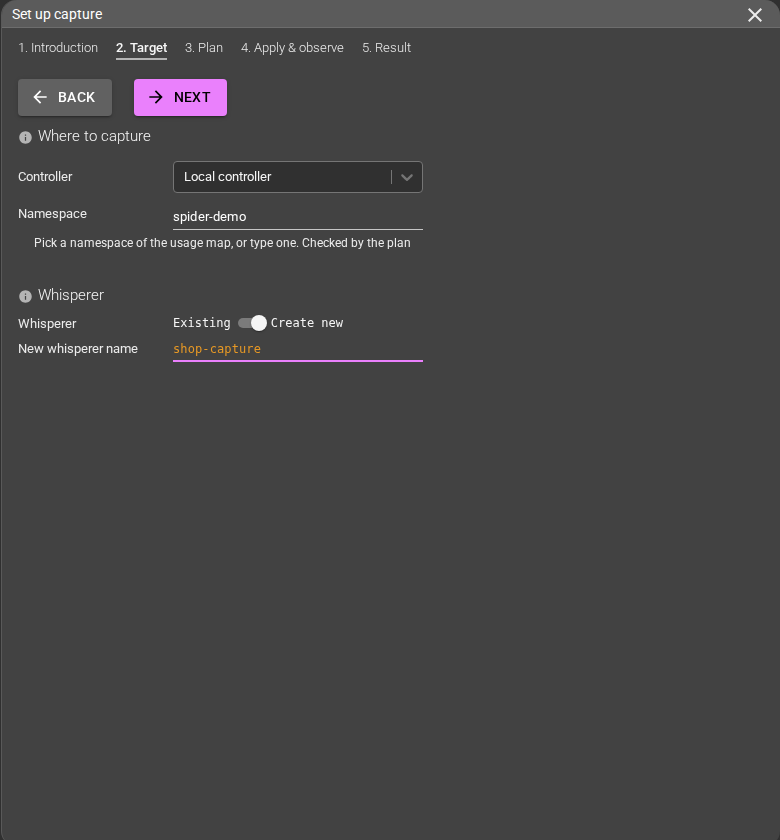
- Controller: the controller of the cluster. Choosing one moves the UI to its usage map.
- Namespace: picked from the namespaces of the usage map, or typed. It is checked by the plan.
- Whisperer: either an Existing INTERFACE whisperer, or Create new with a name. A new whisperer is only created when the capture (or a probe) starts, never by the plan.
The plan reads the traffic of the selected time range on the usage map. Make sure it covers recent traffic of the namespace.
3. Plan
The plan changes nothing. It reads the namespace traffic and shows:
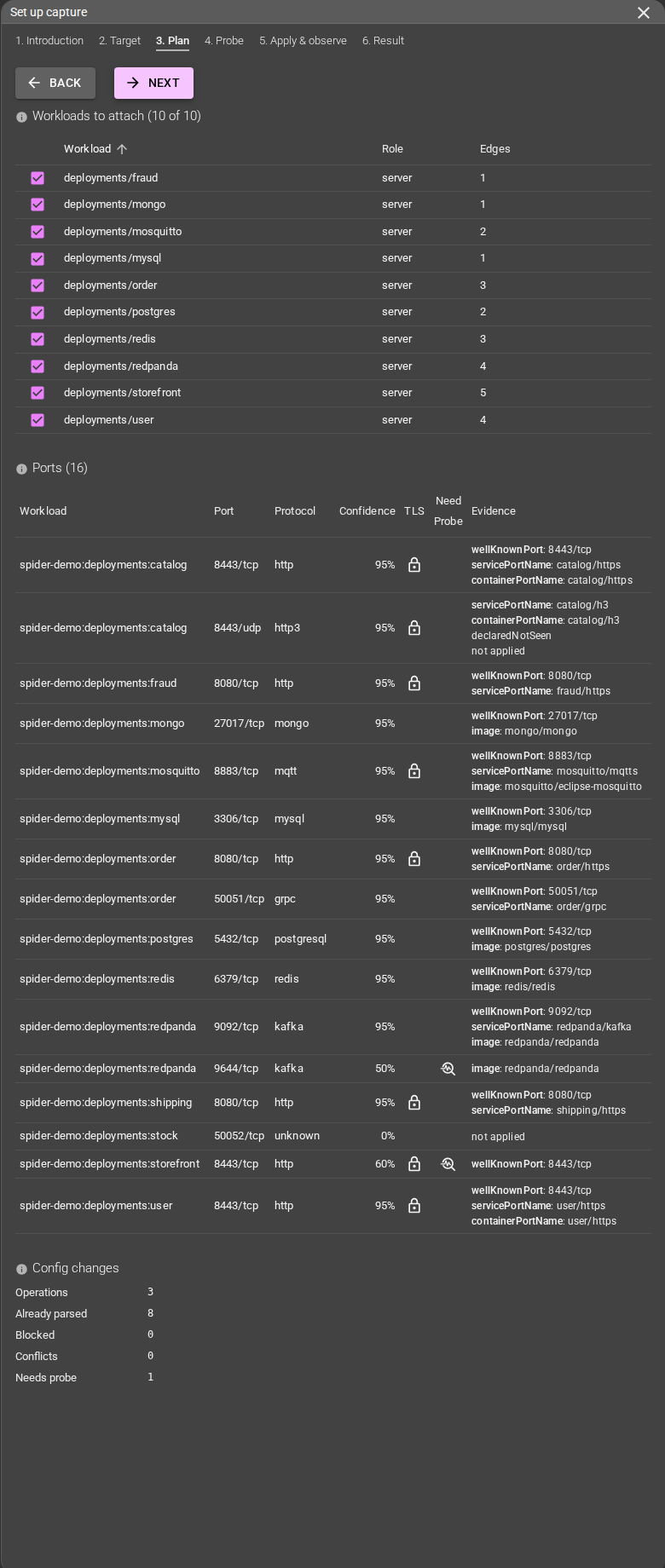
- Workloads to attach: the fewest workloads that cover all the traffic. A gossiper is attached to each as an ephemeral container. Workloads already attached are flagged.
- Ports: each server port with the protocol guessed, a Confidence, a TLS lock when the port is expected to carry TLS, a Need Probe mark when the confidence is too low, and the Evidence (well-known port, service or container port name, image).
- Uncovered edges: traffic no attached workload sees, with the reason (
noAttachableEnd,excluded,maxAttachments). - Config changes: how many operations the plan would apply, ports Already parsed, Blocked (ignored by the whisperer), Conflicts (claimed by another protocol) and Needs probe.
The plan is only a proposal: ports it cannot decide on get no configuration. Long lists are flagged as truncated in a Notices section.
Declared but unseen ports
Ports declared by a workload (container or service port name, image) that carried no traffic are listed with the evidence declaredNotSeen and not applied.
Their protocol, and TLS when the port name says so (https, mqtts, h3...), is known, but nothing is configured for a port with no observed traffic.
Excluding workloads
Untick a workload to leave it out. The plan is recomputed without it.
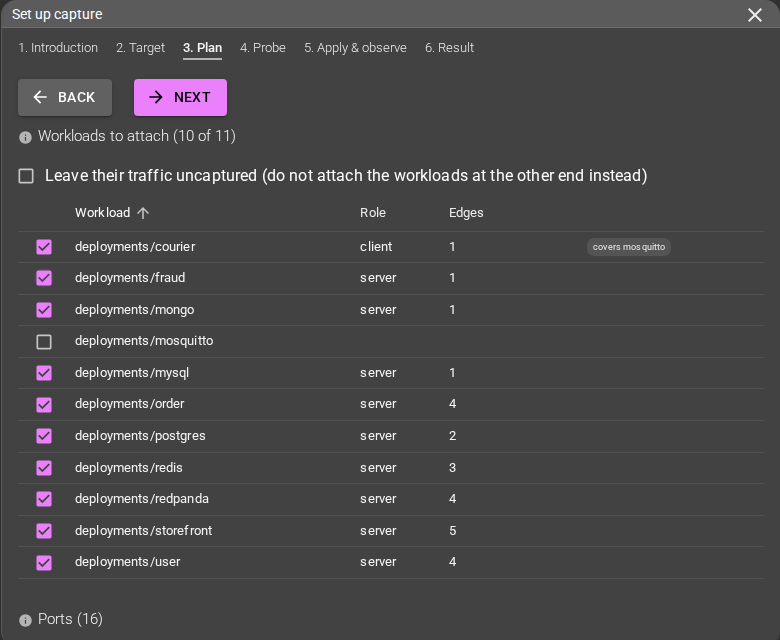
- By default its traffic is captured from the workload at the other end of each connection, which is attached instead and marked covers ....
- Tick Leave their traffic uncaptured (strict exclusion) to avoid that: nothing is attached for the excluded workload's traffic, and those connections appear as
excludeduncovered edges.
4. Probe (when needed)
The step is shown when a port needs a probe (including a port the Advisor has no guess for), or once a probe has run.
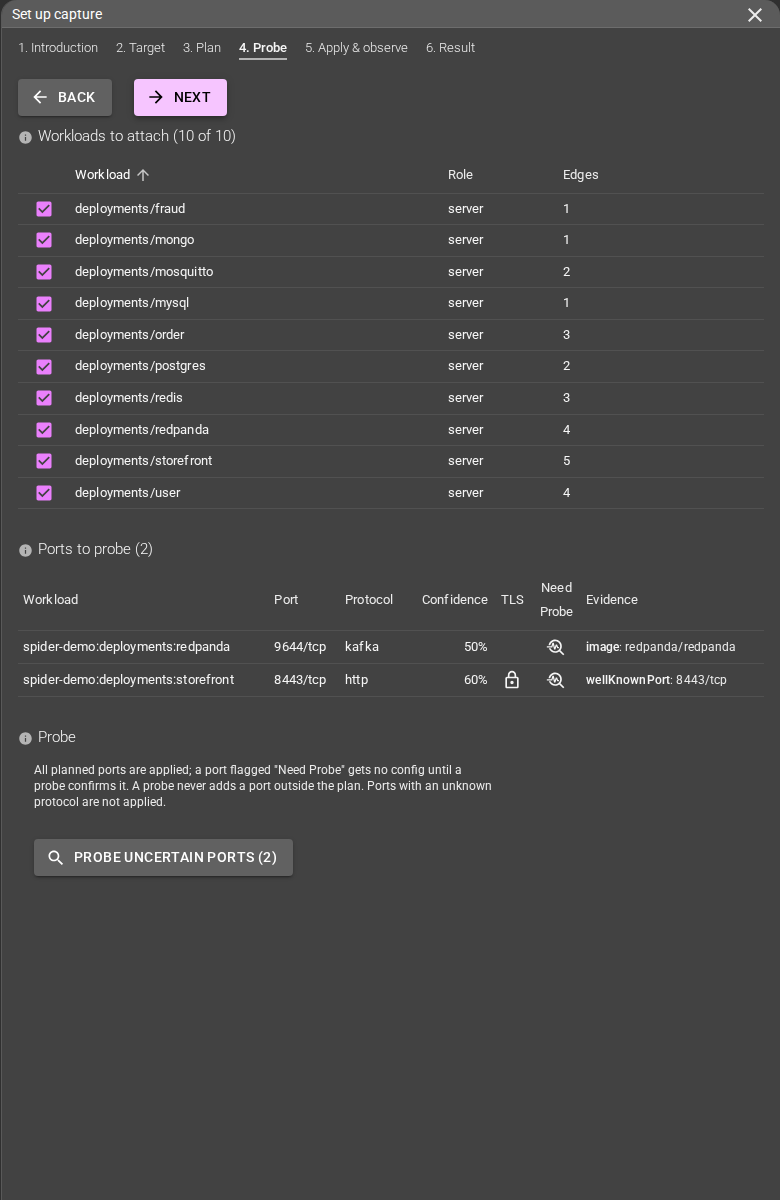
Probe uncertain ports (N), where N is the number of ports to probe, turns packet saving on for the whisperer, attaches it for a few minutes to the workloads serving those ports, reads the first bytes of the TCP sessions it sees, and guesses the protocol (TLS included). Then it detaches and puts the whisperer configuration back.
- While the probe runs, the step shows Probe in progress: the time left and, per workload and port, the number of Sessions seen. The probe ends earlier when every port has seen enough sessions.
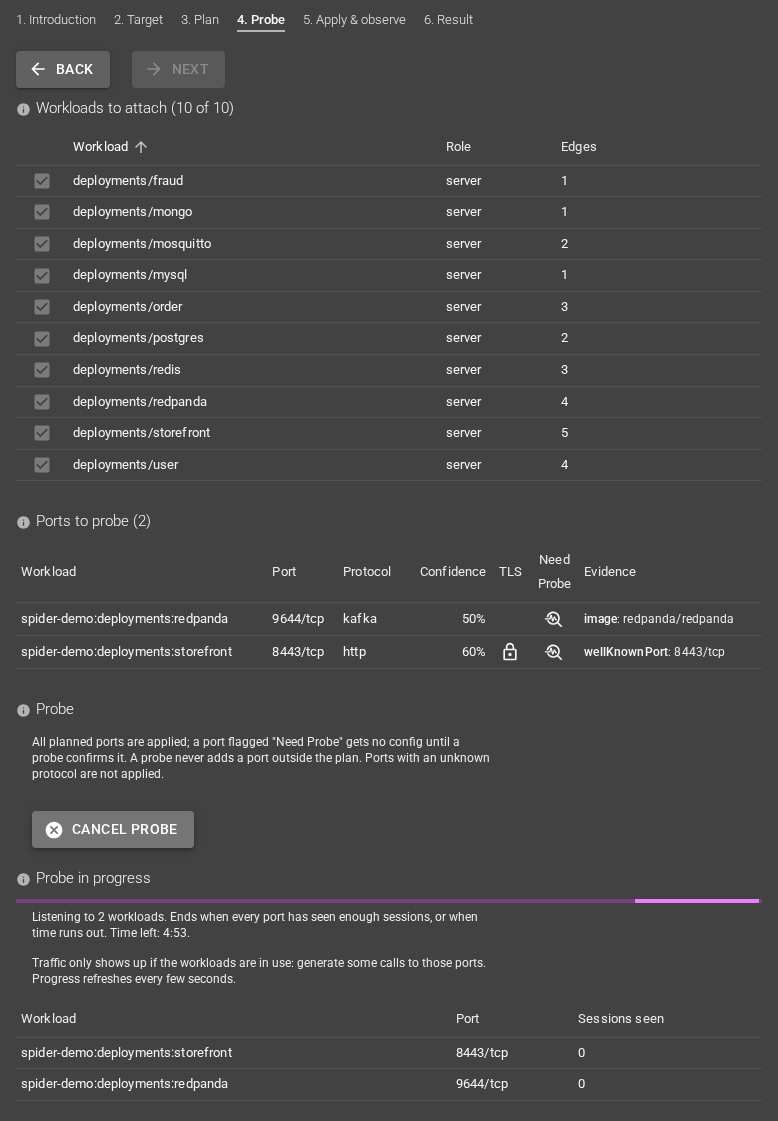
- Traffic only shows if the workloads are used: call them while the probe runs.
- A probe only reads ports of the plan: the ports listed as unidentified are part of it, a port outside the plan is never added.
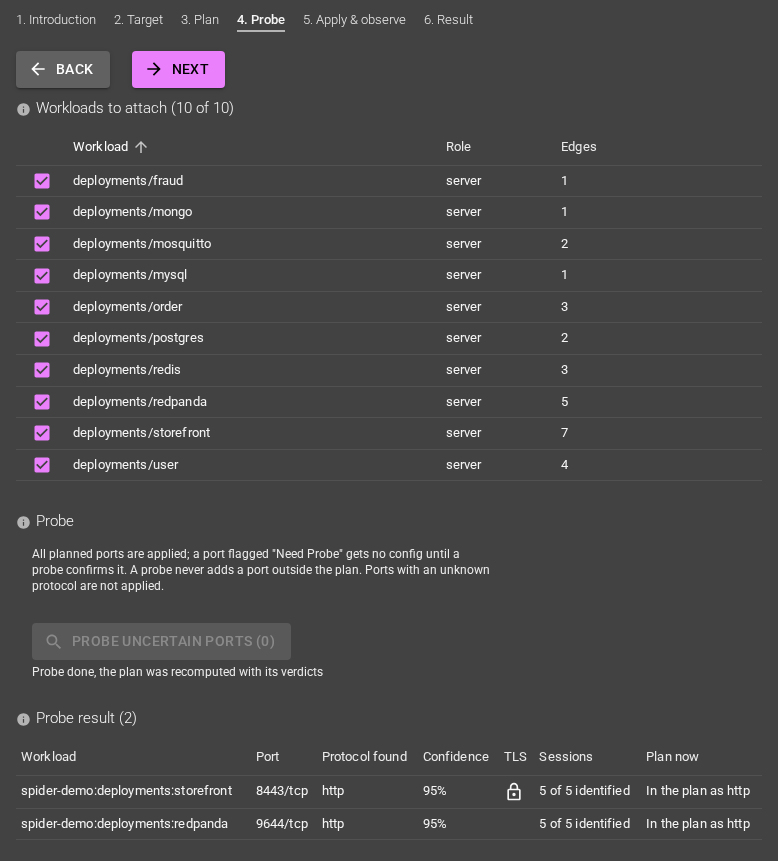
- The plan is recomputed with the verdicts. Probe result lists, per port, the Protocol found, the Confidence, TLS, the Sessions identified (for example
5 of 5 identified), and what the plan does with it (Plan now, for exampleIn the plan as http). The whisperer configuration and attachments used by the probe are put back.
- Cancel probe stops it.
Set a protocol by hand
Set a protocol by hand lists every unidentified TCP port (no guess, or a probe that found nothing), and the ports you already set by hand.
If you know what runs on a port, choose its protocol (HTTP, gRPC, PostgreSQL, MySQL, Redis, Kafka, MQTT, MongoDB or DNS): the plan is recomputed and the port is applied like an identified one, with the evidence manual.
Choose Not identified to undo it.
- Nothing checks your choice: a wrong protocol makes that parser read traffic it cannot decode.
- It never overrides a port the Advisor identified. A choice that no longer matches an unidentified port (the port is now identified, or has left the plan) is shown as ignored and nothing is configured for it.
- A port set by hand is not probed.
5. Apply & observe
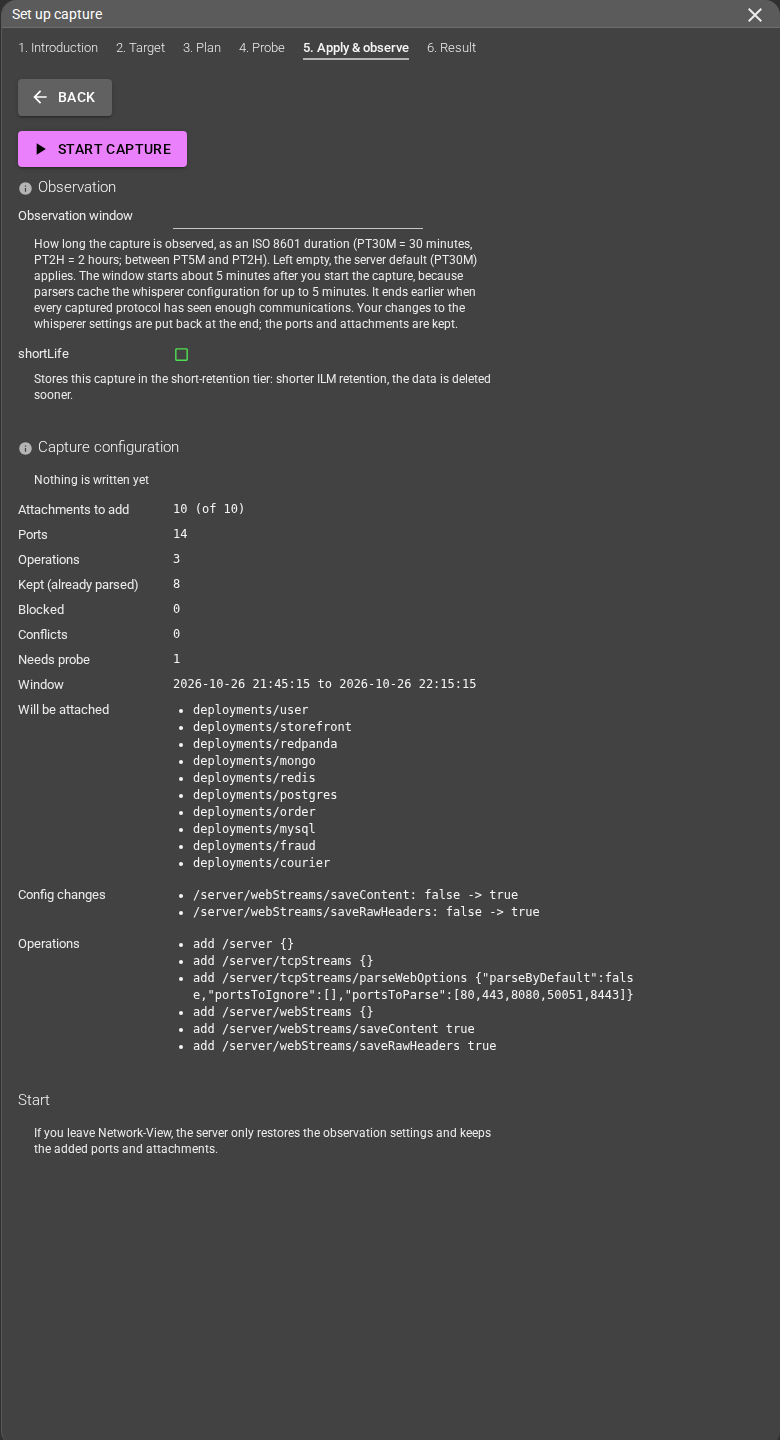
This step first shows a dry run: the exact attachments, configuration changes and operations, and the observation window. Nothing is written yet. You decide by pressing Start capture. It is only available on a plan you have seen.
- Observation window: an ISO 8601 duration between
PT5MandPT2H(defaultPT30M). While observing, the Advisor widens what the whisperer saves (raw headers, and the content of the protocols that do not store it by default; HTTP bodies are stored by default) so traffic can be analysed. The window starts about 5 minutes after the start, because parsers cache the whisperer configuration for up to 5 minutes, and ends earlier when every captured protocol has seen enough communications. - shortLife: stores this capture in the short-retention tier. Leave it off to keep the whisperer's data storage policy.
6. Result
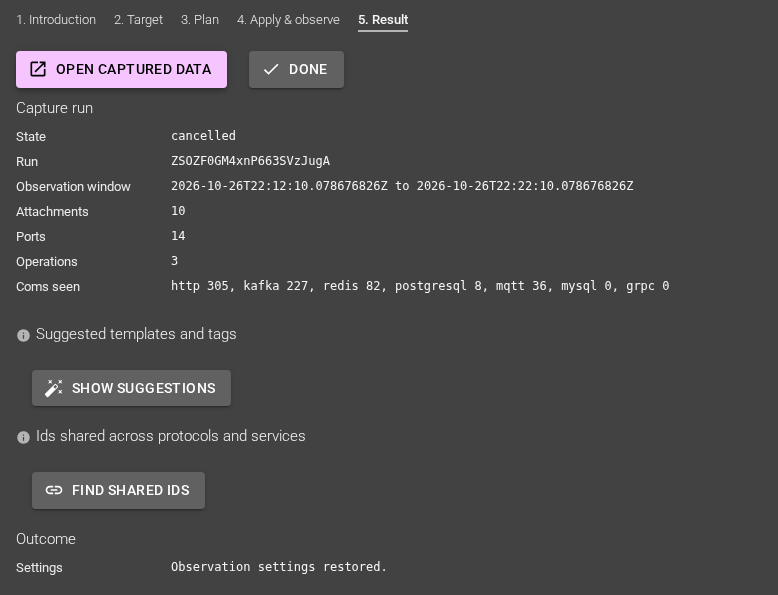
While the window runs, a Capture in progress badge is shown at the top of the panel and the Capture run section shows the state (observing), the run id, the observation window, and the Coms seen per protocol.
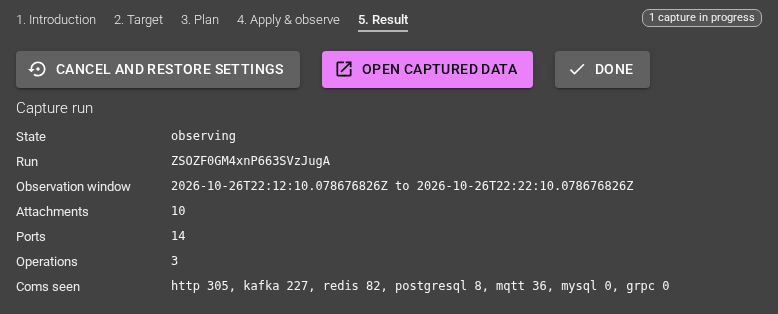
- Capture run: the state, the observation window, attachments, ports, operations and communications seen.
- Cancel and restore settings (and Restore) undo the capture at any time while it can be restored.
- Open captured data opens the captured data of the whisperer.
- When the run is finished, the Suggested templates and tags and Ids shared across protocols and services sections mine the communications of the run's observation window. Suggestions load a few protocols at a time and are retried when the Advisor is busy. Ticked rules are pushed to the whisperer configuration right away, one protocol at a time, after its existing rules (all-or-nothing for the ids), see Link ids.
- Refresh reloads the runs immediately. A sticky capture indicator stays visible while a run is going, and a finished run is remembered when you reopen the wizard.
- If the plan changed between the dry run and the start, a banner lists what differs, with Dismiss.
After a cancel or a restore, the state is cancelled and the Outcome section reads Observation settings restored.
What is kept, what is restored
- Kept at the end of a run: the added ports and parser flags, and the attachments, so the whisperer keeps capturing.
- Put back at the end of the window: the content-saving settings changed for the observation (and the data storage policy if you chose shortLife).
- Restore (or cancel) also removes the ports and attachments the capture added. Attachments you made yourself are never touched.
- Closing the panel does not stop a running capture. Reopen the wizard on the same namespace or whisperer to follow it. A notification tells you when the window ends while you are in the application.
- If you leave Network-View, the server only restores the observation settings and keeps the added ports and attachments. Such a run is shown as abandoned, and Restore can still undo it.
Where to find the whisperer entry
Suggest templates and tags
Concept
Request templates group similar requests under one readable name; tags extract searchable fields. The Suggest button mines the whisperer's communications of the selected time range (the last hour by default) and proposes both. The page shows the window it mined. See Configuring a Whisperer for what the rules mean.
Usage
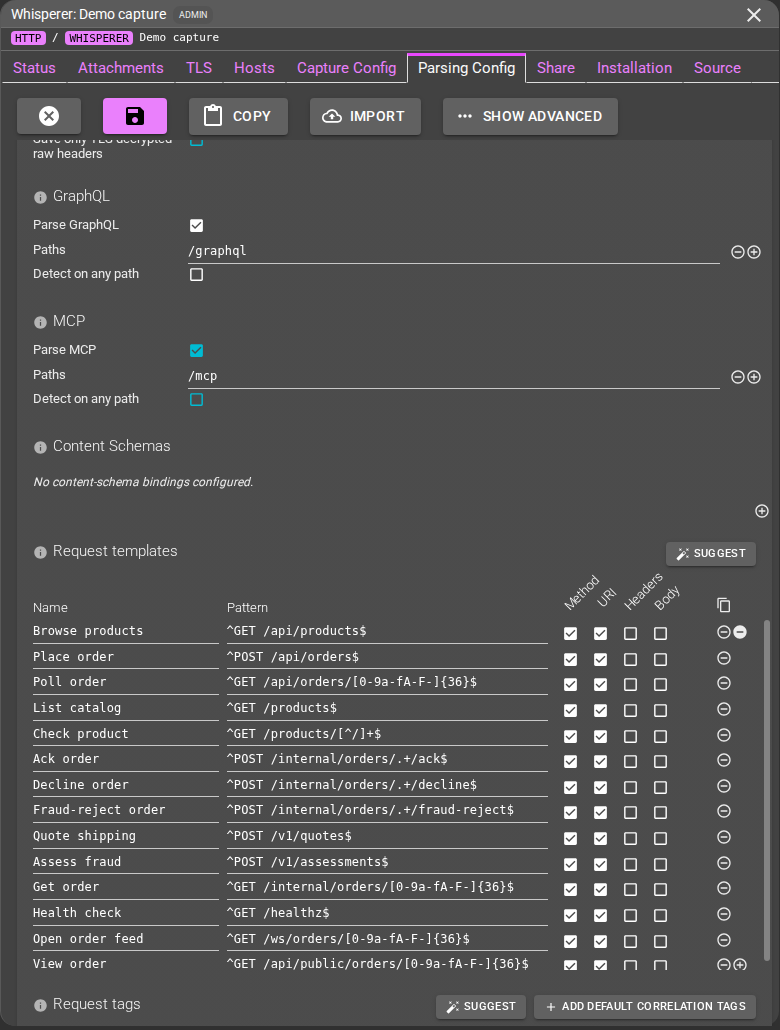
- Open the whisperer, Parsing Config tab, and press the edit pencil. Suggest is an edit-mode action.
- Open a protocol section. Suggest sits on its Request templates, Request tags and Response tags editors (HTTP, gRPC, Kafka, MySQL, MQTT, PostgreSQL, Redis, MongoDB, according to what each protocol supports; MQTT has one tags editor).
- The Suggest page lists the candidates.
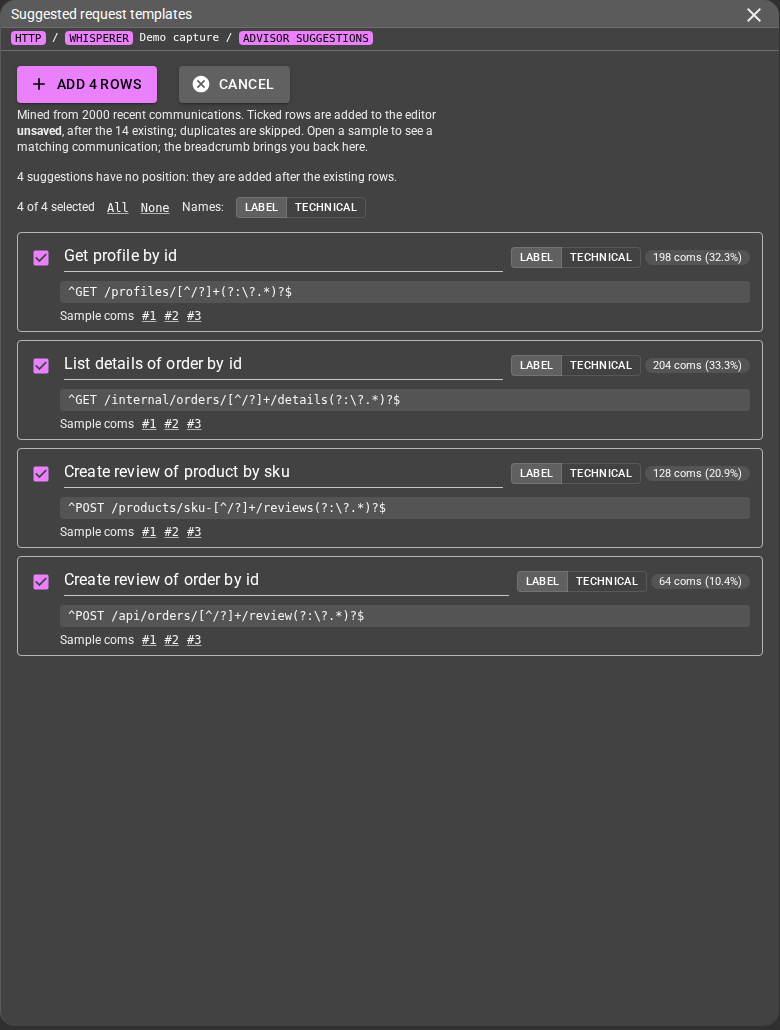
- Each card has a checkbox, a name, the share of communications it matches, the rule, and Sample coms links. Open a sample to see a matching communication, the breadcrumb brings you back.
- Warnings (rule that could not be validated, shadowed by an earlier rule, name collision, path collisions) are shown on the card, and a flagged card starts unticked.
- All / None select candidates.
- Names: Label | Technical switches the name of every template card. Label is a readable name (
List orders of user by id), Technical the method and path pattern (GET /users/{int}/orders). Each card has its own switch, and the name field can be edited. A name that is empty or invalid is flagged and blocks Add.
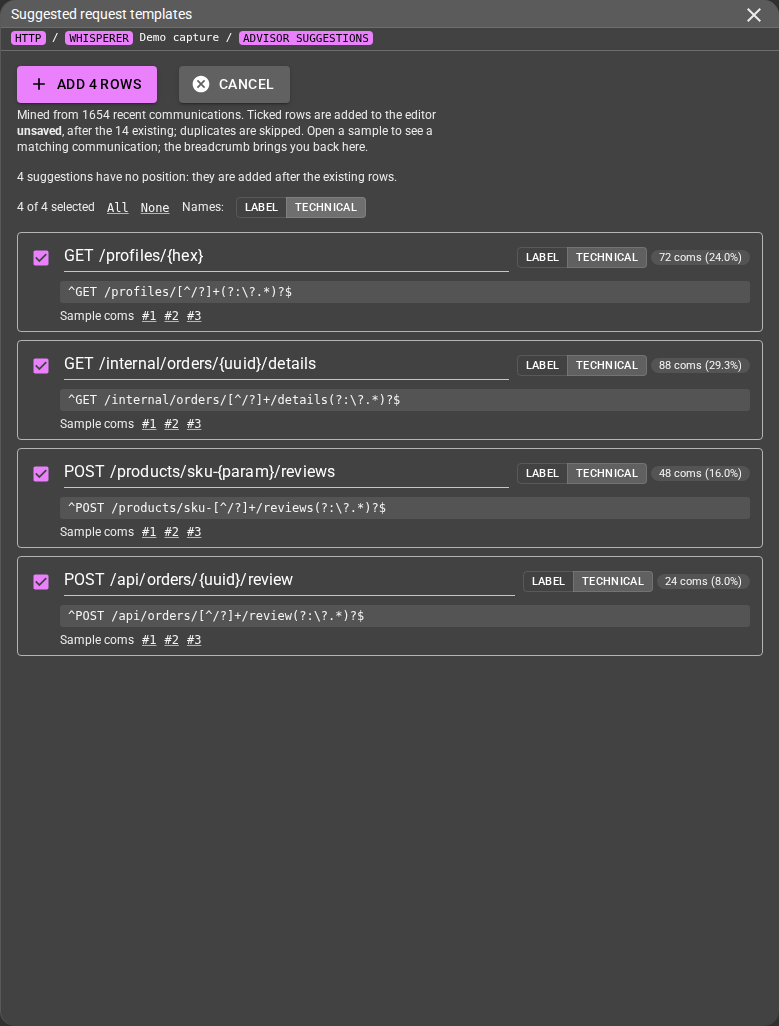
- SOAP and JSON-RPC endpoints are grouped by endpoint, one template per operation plus a catch-all for operations not seen yet, which keeps its name.
- Suggestions with no position are added after the existing rows.
- Add N rows puts the ticked rows in the editor, unsaved. Duplicates are skipped. Cancel leaves nothing behind.
- Review and edit the rows, then press the editor's Save. Nothing is written to the whisperer before.
The Suggest button on a Response tags or Reply tags editor works the same way, for the response side (headers, JSON body fields, SQL result columns, MongoDB reply fields...). Some tags need content to be saved (for example saveDataRows for SQL result columns) and are withheld from users without payload access.
Rules apply to traffic parsed afterwards, within about 5 minutes (parser cache). Communications already stored are not re-templated. Examples shown come from captured traffic and are displayed as text only.
Link ids
Concept
The same business id (an order id) travels through several protocols, and between services. Link ids finds ids that recur, and proposes one concept name with a tag rule in every place the id appears. The rules, the protocols examined, the settings they depend on and what is not proposed are described in Linking ids across protocols and services.
From the Parsing tab
- Open the whisperer Parsing Config tab, press the edit pencil, then Link ids (in the Parser configurations header).
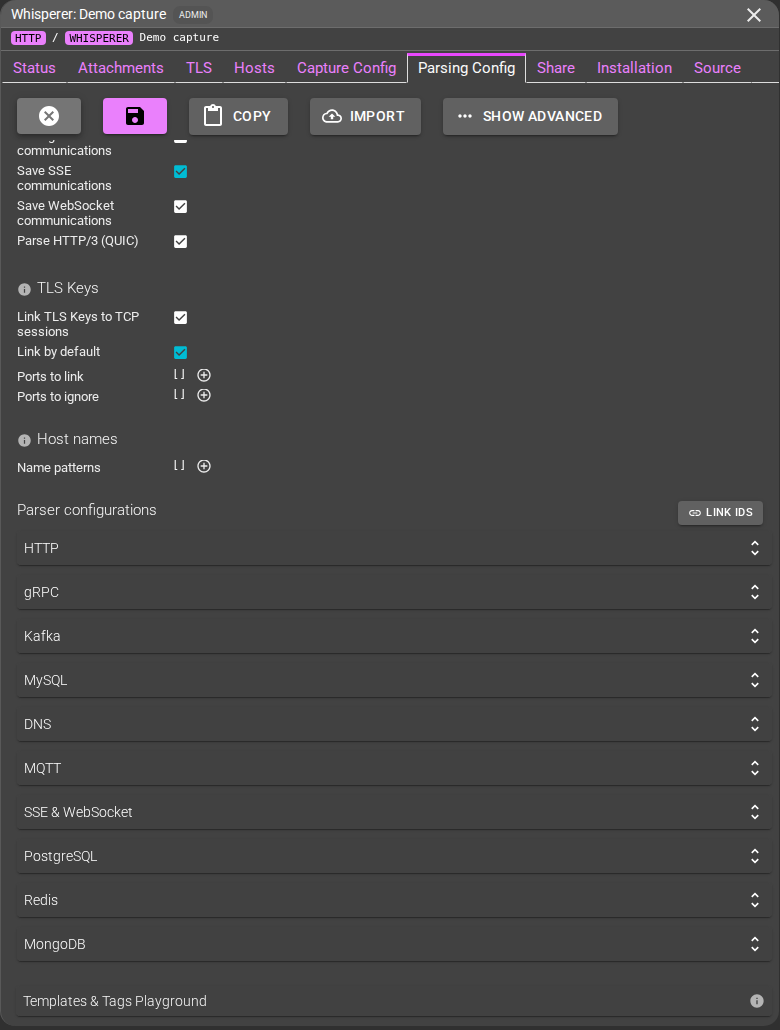
- Review the page.
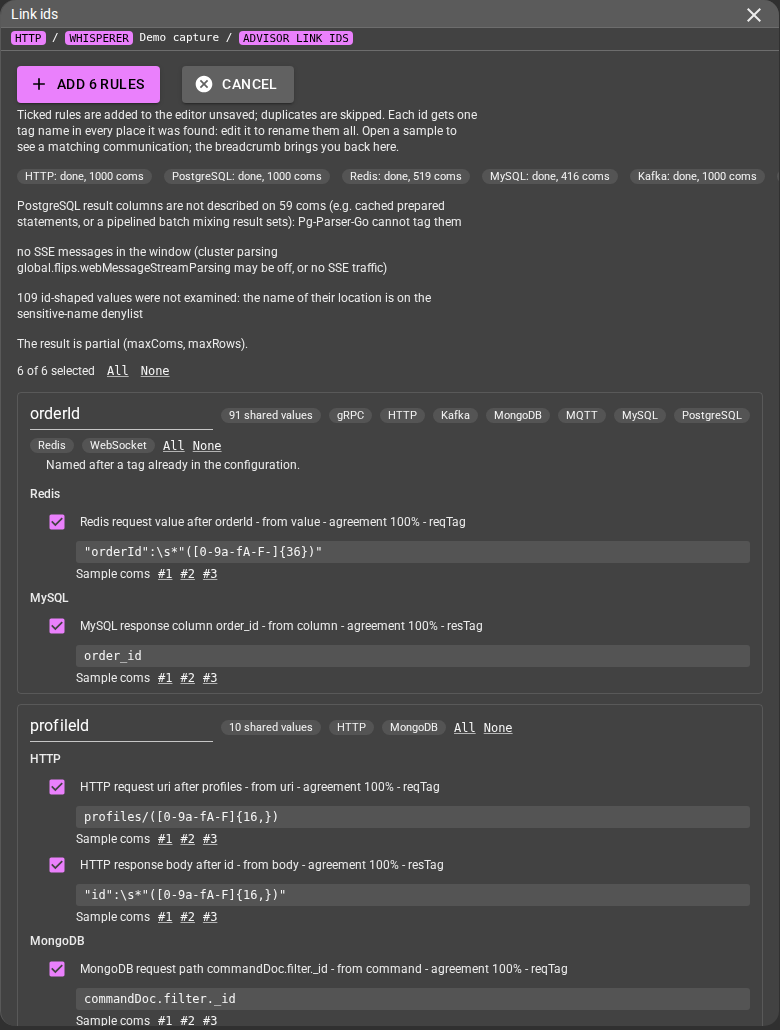
- The page shows the time range it mined (the last hour by default, the selected range when one is set).
- Per-protocol status lines (
done,noComs...) and notes say what was examined or skipped. WebSocket and SSE messages are included. A partial result notice appears when limits were reached. - Each id is a concept card: its name (edit it to rename it in every place), how many shared values, the protocols involved, and one rule per location, with its regular expression or path and Sample coms. All / None act per concept or on the whole list.
- A concept named after a tag already in the configuration says so. Two concepts with the same name, or a blank name, are flagged because their tags would merge.
- Add N rules merges the ticked rules into the unsaved draft of every affected editor, in one update. Press Save to persist them. Nothing is stored before.
From the wizard
The Result step of a finished run has an Ids shared across protocols and services section: Find shared ids, tick the rules, Apply N. Applying is all-or-nothing: the rules of all protocols go in one configuration write, and if one rule is refused (invalid) or the configuration changed meanwhile, nothing is written and the reason is shown.
Values are examined only if you are allowed to see payloads.