Settings
Concept
The Main settings panel manages settings that apply too many visual components and tools.
Yuo access it through the wheel icon on the top.

Global tab
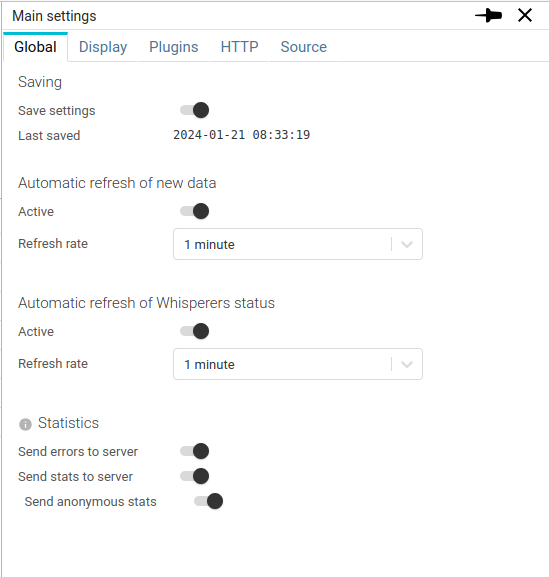
Saving
Spider saves users configurations and settings continuously on the server.
This allows reloading from anywhere, so that you will enjoy your customised experience on any of your devices and browsers.
Saving settings:
- is done after some time (not at each change), waiting for your settings to be settled before saving ;)
- may be deactivated at will when you want to try something special.
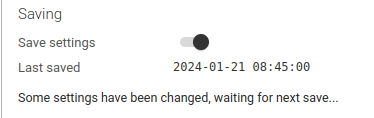
The feature is deactivated when loading a shared link.
This avoids to override your settings from those of the link.
Saving in progress
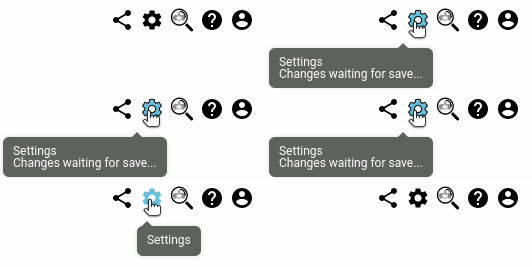
- The icon goes white when you performed a change of your settings that is not saved.
- The settings wheel turns when saving.
Statistics
By default, Spider sends errors and usage statistics to the server.
You may deactivate these features in the settings.

Errors
Errors include
- A partial copy of user state
- The last action performed
- The error log with the request or component failure
They are reported in the monitoring logs page.
Statistics
Statistics include
- Time spent working with Spider
- UI options active
- Count of each action performed
They are reported in the monitoring UI usage page.
The statistics may be anonymized or not.
Anonymization token is stored on Browser side and never linked to your account.
Correlation
Defines which extracted tags identify a chain of communications.
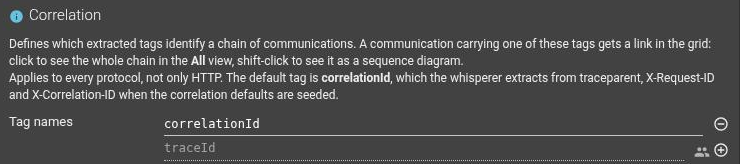
Above, correlationId is the user's own entry and traceId is greyed with a team icon: it comes from the
team settings and the two lists are merged.
Spider does not have a separate "correlation id" data type: a correlation id is an ordinary tag that the whisperer extracts from the traffic. This setting is what tells the UI which of your tag names to treat as a chain identifier.
| Field | Description | Type | Default |
|---|---|---|---|
| Tag names | Names of the tags that identify a chain of communications. | Array of String | correlationId |
The default value, correlationId, is the tag name that the
seeded correlation rules
write into. If you rename or split that tag on your whisperers, list your own names here instead.
What it drives
A communication carrying at least one of the listed tags gets a link button in the Links column of the
grid:
Click- switch to the All view, filtered on that chain.Shift + Click- switch to the All view and open the sequence diagram of the chain.
Both gestures leave for All on purpose: a chain crosses protocols by definition, so staying inside the collection you started from would only ever show you its HTTP hops, or its Kafka hops. Both gestures also replace the current filters rather than adding to them, so one click always lands on a clean view of the chain.
The button's tooltip names only the tags that actually matched on that communication. A tag you configured but that this communication does not carry is not mentioned, and a communication carrying none of them shows no button at all.
This is a display setting, not a capture setting. Point it at a tag name that was extracted months ago and the button lights up immediately on communications captured back then. Tag extraction rules cannot do this - they live in the whisperer configuration and only affect newly captured traffic.
The setting exists at user level and at team level; the two lists are merged, so a team can publish the tag names everybody should follow while a user adds their own.
Upgrading from the HTTP header setting
Before this release the same button was driven by Correlation Ids in the HTTP settings tab, which listed HTTP
header names and only ever worked on HTTP. Two steps to carry your configuration over:
- On each whisperer that matters, re-create each configured correlation header as a tag extraction rule named
correlationId. TheAdd default correlation tagsbutton coverstraceparent,X-Request-IDandX-Correlation-ID; anything else is added by hand. - Replace the header names in this setting with tag names.
Rules added in step 1 apply to newly captured traffic only. Communications captured before the rule existed carry no tag and will not light up, whatever you put in step 2.
The header mechanism was retired rather than kept alongside because it had three limits the tag mechanism does not:
- It could not correlate a W3C
traceparent, whose span id changes at every hop, so filtering on the whole header value matched exactly one hop and never the chain. - It read headers off the stored document, so a whisperer with
Save raw headersoff showed nothing. - It filtered inside the current collection, so a chain that crossed protocols only ever showed its HTTP hops.
Display tab
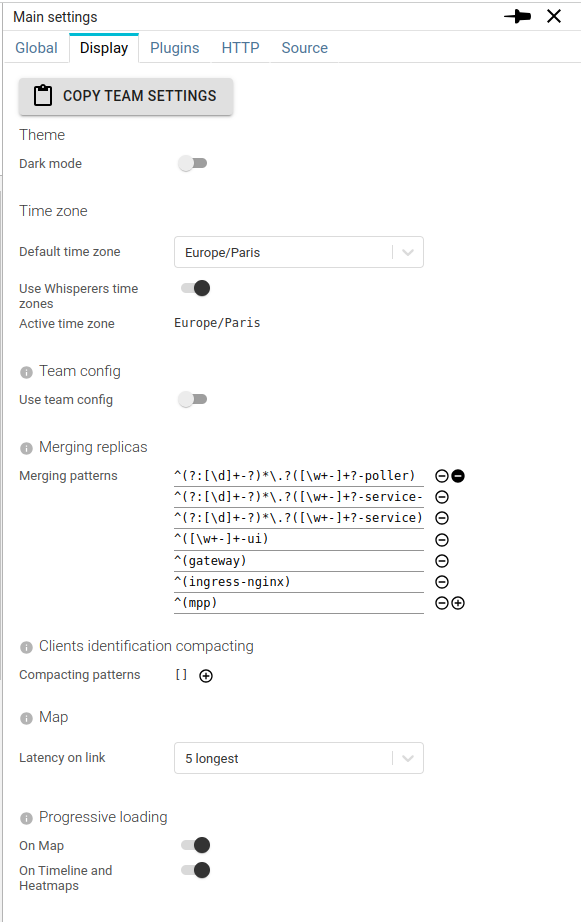
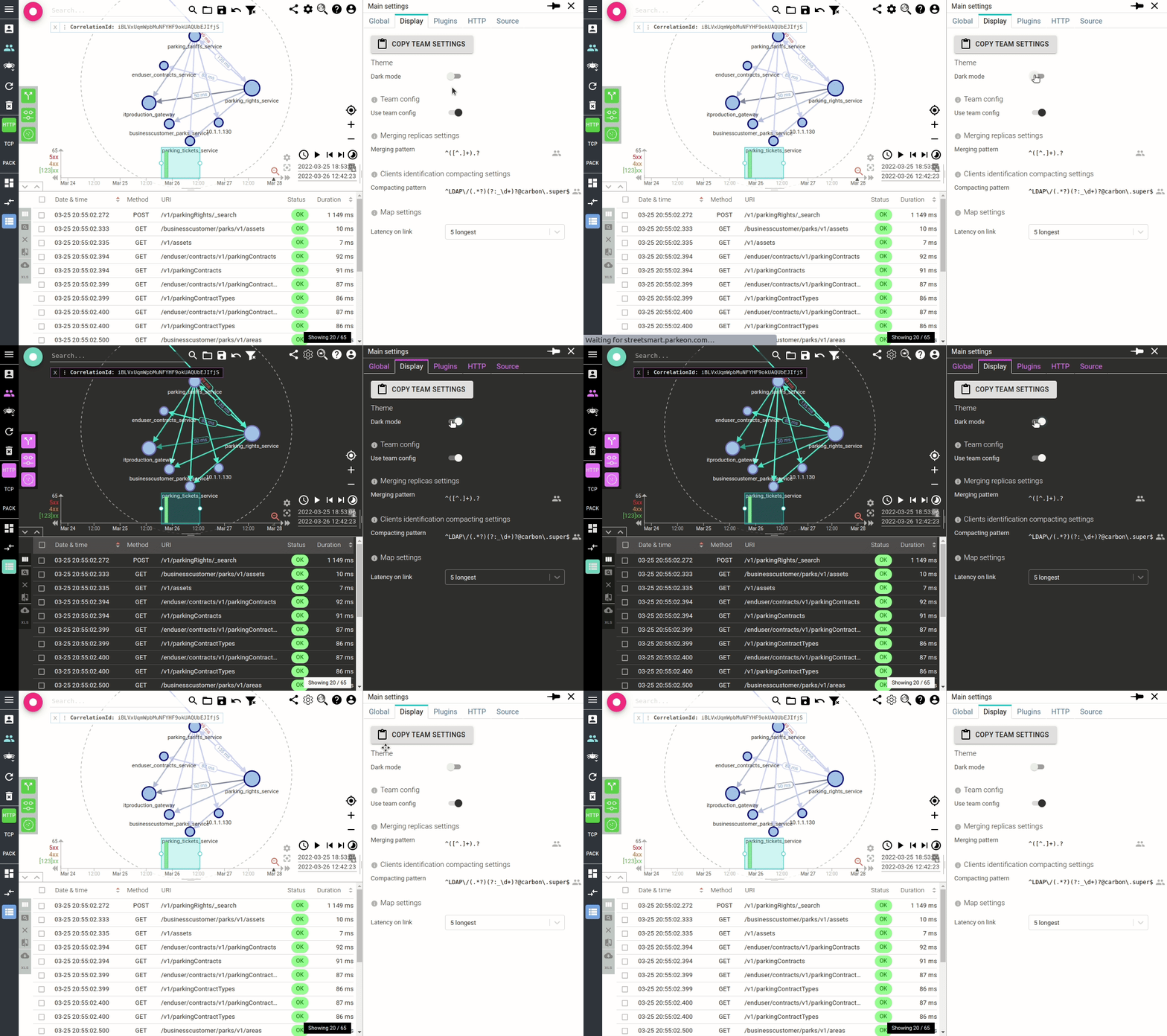
Dark mode
To answer many user requests, Spider is also available in Dark mode ;-)
Timezone
Each user may define its own default timezone to display times.
Then depending on the setting above Use Whisperers time zones, Spider will:
- When active,
- Use the selected Whisperer(s) timezone(s) if only one timezone is selected
- Use the default timezone if the selected whisperers are on different timezones
- When inactive,
- Use the default timezone
The computed active timezone is shown for clarity.
When the active timezone differs from the default one, it is shown in a badge next to the selected Whisperer one:

Team config
Switch to use or not team settings.
See Team shared settings section.
Merging replicas
One of the most important settings to have a clean view.
See Merging replicas
Clients identification compacting
One of the most important settings to have a clean view.
See Client identification compacting
Map
Specific map settings.
Progressive loading
Switch on or off progressive loading.
Administration settings

Only for administrators, this switch allow them NOT TO SEE local agents when listing all Whisperers, Controllers or Gociphers.
When impersonating a user, his local agents are nonetheless shown, as well on the user profile.
Plugins tab
Plugins and their activation are detailed in Plugins section.
Connected apps tab
Lists the AI agents (Claude, ChatGPT, Claude Code...) you authorised to access Spider on your behalf through the MCP server.
- The Connect an AI agent block shows the MCP URL, with a copy button, and where to paste it in each client.
- Each connected application is a card with the agent's declared name, its scopes and when it was created. Its Last used date is not tracked yet.
- Revoke ends the connection immediately: the agent stops working right away and must be re-authorised from its own side. Logging out of Spider does not revoke an agent - only this tab does.
The tab only exists when the licence carries the MCP capability (TEAM tier and above). It is absent, not disabled, without it.
Which agent platforms may connect is an administrator decision, see Connecting agents with OAuth.
HTTP tab
HTTP specific settings are detailed in [HTTP communications] section(/docs/ui/CapturedData/HttpCommunications#specific-settings).