HTTP communications
Concept
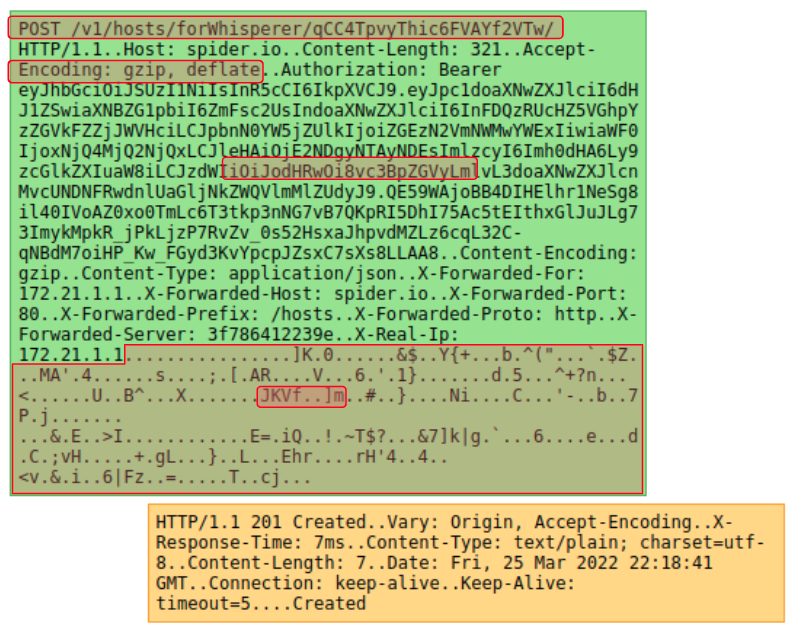
An HTTP communication is a request/response exchange between two parties.
It is a sequence of related TCP packets in a TCP session between a client and a server - or, for HTTP/3, of UDP
datagrams carrying a QUIC connection.
Each HTTP communication is associated with:
- Source and destination IP address
- Source and destination TCP port
- The HTTP request method, url, headers and body
- The HTTP response status, headers and body
Many more data are also computed or extracted to help identification and understanding of the communications.
The HTTP communications are extracted while parsing the TCP sessions in streaming, on Spider backend.
HTTP versions
HTTP/1.x, HTTP/2 and HTTP/3 communications are the same resource, shown in the same views, with the same filters,
templates, tags and statistics. The Http version field tells them apart (1.1, 2.0, 3.0), and it is searchable:
httpVersion:"3.0".
- HTTP/1.x and HTTP/2 are detected on the connection itself, on the same ports, with no configuration.
- HTTP/3 runs over QUIC, on UDP. It is decrypted with the TLS keys captured by Gocipher, and is turned on per Whisperer: see HTTP/3 parsing. gRPC calls over HTTP/3 become gRPC communications, and SSE streams one message per event, as on HTTP/2. WebSocket over HTTP/3 is not decoded.
- An HTTP/3 body is only available when the Whisperer saves the content: QUIC packets are not decrypted again when the communication is read, so without it the body shows Body not stored, with the option to turn on.
Global Tab
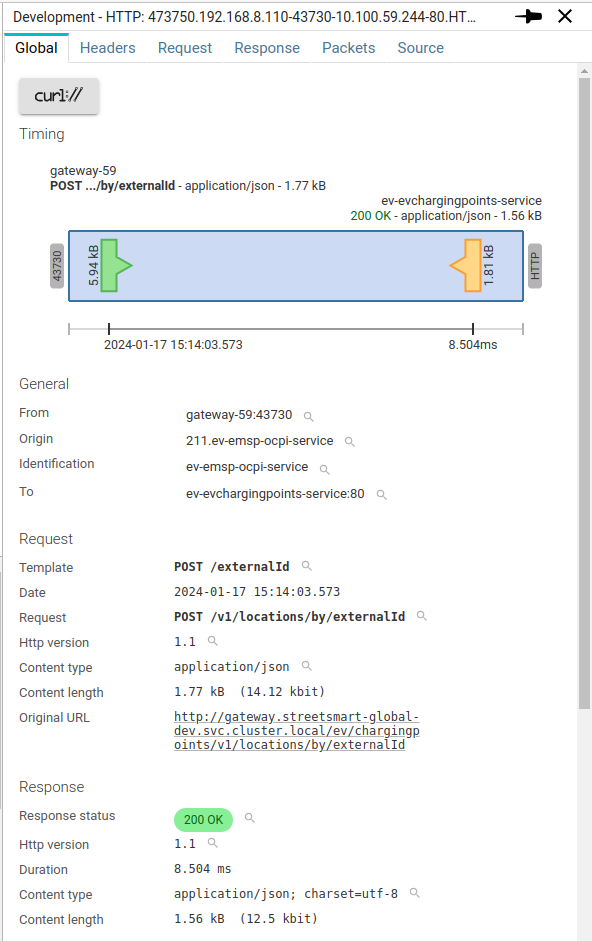
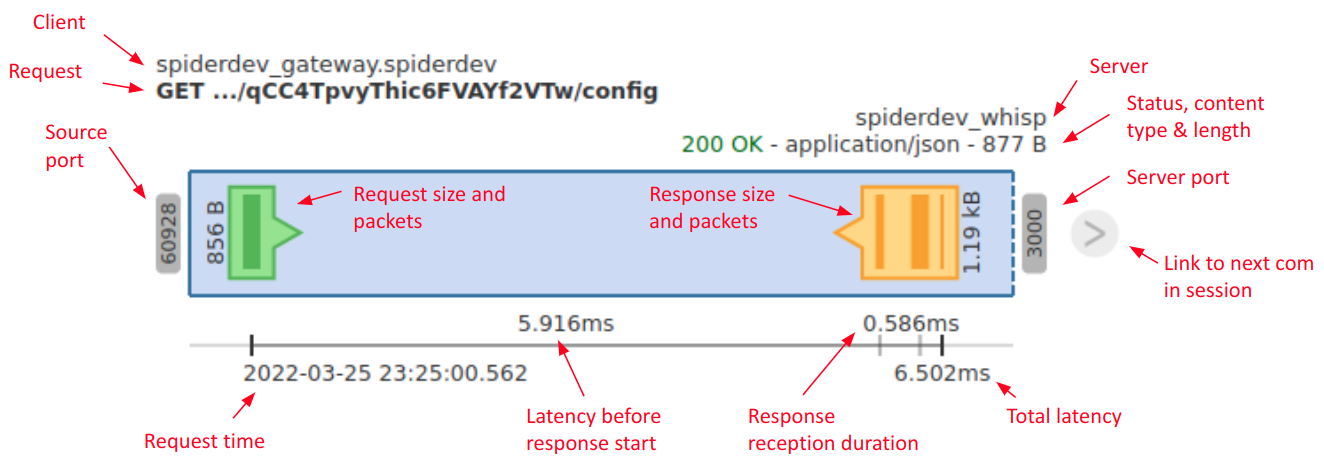
Timing
The timing diagram shows much information at a glance:
General
The General section shows identification information:
| Field | Description |
|---|---|
| From | Host and port of the captured client |
| Client workload | Kubernetes workload of the client, shown beneath From - see Workload identity |
| Origin | Host at the origin of the request, when reverse proxies are involved |
| Origin workload | Kubernetes workload of the real caller behind a reverse proxy |
| Identification | Identification of the caller, if extracted from JWT token, Certificate, Basic auth etc. |
| To | Host and port of the captured server / service |
| Server workload | Kubernetes workload of the server, shown beneath To |
From,OriginandIdentificationare showing, by order of preference:- The short name of the Host, as extracted during integration in the backend, or as renamed by a user
- The FQDN of the Host
- The IP address, if no Host found
Identificationfield is extracted / computed at parsing time and is searchable
Identification may be enriched / decoded by a plugin.
To translate clientIds in their clientNames for instance.
Workload identity
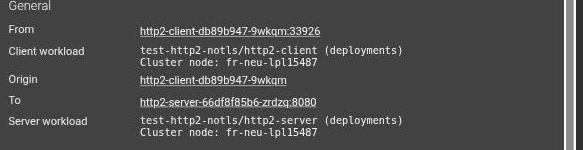
When Spider can place a captured endpoint on a Kubernetes cluster, it shows its workload right under the
From / Origin / To line: namespace, kind (Deployment, StatefulSet, Pod...) and cluster node.
It only appears when a workload was actually resolved - an endpoint captured outside Kubernetes, or one Spider could not place, shows nothing extra rather than a blank line. Clicking it filters on that workload, the same as any other field in this section.
The same identity is what the grid columns, the Clients / Servers filter bands, the Network Capture map's grouping and the sequence diagram / waterfall all key off.
Request
The Request section shows summary information of the request part:
| Field | Description |
|---|---|
| Template | Computed API name to identify the request |
| Date | Date of the request, user's local time |
| Request | {Method} {URI Path} |
| Query string | The querystring part of the request, URL decoded |
| Http version | The Http protocol version used |
| Content type | Request Content-Type header |
| Content length | Either Content-Length header when present, or the captured size. If both are different, it is shown. |
| Original URL | Reassembled URL on how the service was called, taking into account reverse proxies information. |
- Spider request
Templateis a very important feature allowing to have a uniquenamefor all the same API calls, removing variables etc. It refers to the URL template standard that could be used to represent the APIs.
Response
The Response section shows summary information of the response part:
| Field | Description |
|---|---|
| Response status | The status of the response, with meaningful color |
| Http version | The Http protocol version used |
| Duration | The different between request start and response end |
| Content type | Response Content-Type header |
| Content length | Either Content-Length header when present, or the captured size. If both are different, it is shown. |
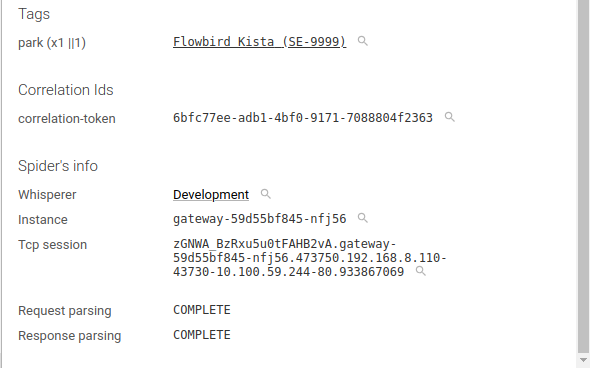
Tags
Tags are a very important feature of Spider parsing process.
They are configured at Whisperer level, and are a custom extraction of the data exchanged to allow searching and aggregating by this value.
They may be any part of the URI, headers or bodies of the request and response.
Tags may be enriched / decoded by a plugin.
For instance:
- To translate internal identifiers from requests in their business names
- With a link to open them in the application under observation
Correlation identifiers are no longer a separate, HTTP-only concept read from headers.
A whisperer extracts them as an ordinary tag - correlationId by default - and any communication carrying it
gets a link in the grid's Links column, whatever the protocol.
See Correlating communications.
Spider info
This section shows Spider own information:
| Field | Description |
|---|---|
| Whisperer | Name and link to the Whisperer |
| Instance | Instance of the Whisperer that captured the communication |
| Tcp session | Tcp session id and link |
| Request parsing | Parsing status of the request |
| Response parsing | Parsing status of the response |
Actions
Various actions are possible on this tab:
- When packets are saved and available, you may download a .pcap file with the HTTP communication only
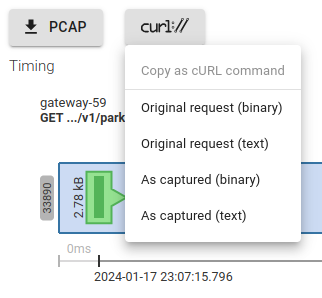
- You may download a cURL instruction to replay (or adapt) the communication on your side
cURL export
You may, directly from the UI, generate and export cURL commands to replay a selected requests. The cURL command is generated on the UI and copied in your clipboard. 💪
You have these options:
- Export as binary
Spider fetches the request body as it was transmitted over the network, encodes it as base64 and provides it as binary to cURL.
- Export as text
Spider fetches the request body as text (or tries to), beautifies it if its content-type matches a known JSON or XML Mime, and provides it as text to cURL.
This mode is easier if you want to do changes 😉
- Export original
If x-forwarded-* headers are present, Spider tries to rebuild the original query (that was made to the reverse proxy).
- Export as captured
Spider provides the request as it has been captured by the Whisperer.
Please note that:
- Headers are lower cased
- If filters are set up on the parsing configuration, Spider will only fetch the saved headers
See this blog post for examples.
Headers tab
The Headers tab shows both request and response headers in two ways:
- As a decoded list
- Sorted alphabetically
- With embedded decoding of authentication (Basic auth and JWT)
- With plugins hooks to decode the headers values
- With filter icons
- As raw format, as it was transmitted over the network
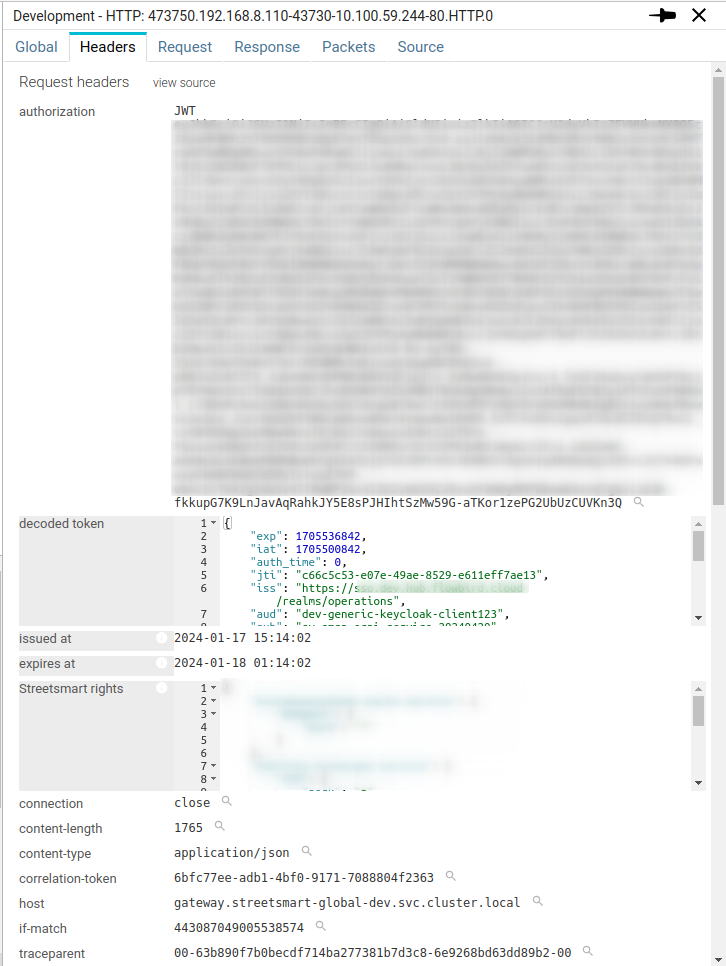
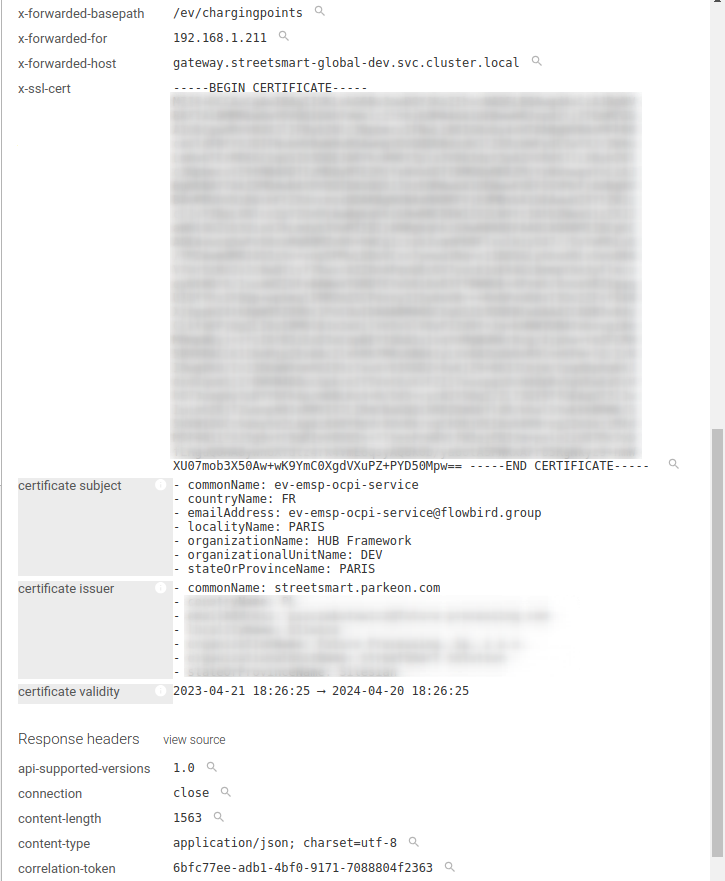

- Decoded fields are shown with a dark background under the field name.
- Plugins injected fields are marked with an (i) icon and a tooltip.
Getting raw header
By clicking on view source, you get access to the raw headers as captured.
Clicking on view parsed gets you back.
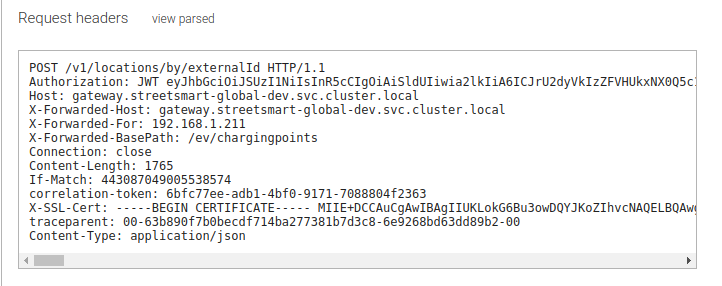
Raw headers are available on a Whisperer captured communications:
- If you save packets
- Or if you save raw headers
- And, if you did not filter out raw headers for this URI
For HTTP/3, raw headers are only available if you save them: they cannot be rebuilt from the encrypted packets.
Request tab
The Request tab shows the HTTP request payload, or body.
- It indicates its advertised
content-typein the top left. - You may download the payload with the download button on the right.
- You may choose between 3 ways of seeing the payload:
| Mode | Description |
|---|---|
| Interpreted | Spider interprets it and show it in a code editor, with: - Color syntaxing - Reformated code - Code folding - Search capabilities with Ctrl+FBest with: HTML, CSS, JS, JSON, XML |
| Browser | Shown as the browser interprets it. Best with images, videos, music... |
| Raw | The raw text version. |
| Transcoded | Decoded JSON view, available when the com is bound to a Content Schema Binding (see below). |
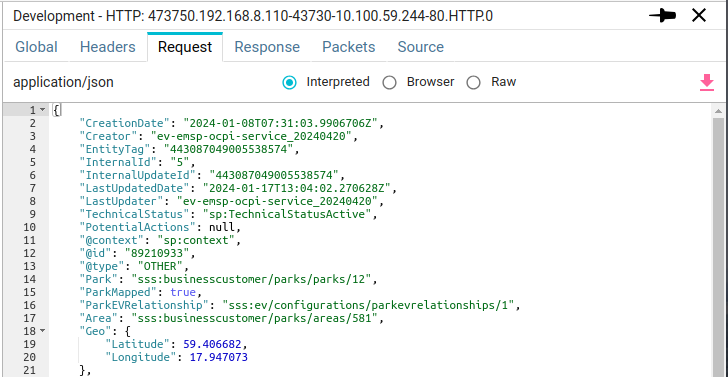
Spider sets the best option depending on the content-type header value.
When the header value is wrong, the display will be messy.
Transcoded view
Transcoded appears as the default view when the whisperer has a Content Schema Binding whose method, URI template, and content-type match this com's request or response. The body is fetched in decoded JSON form from the server and displayed via the same JSON viewer used by the Interpreted view, but driven by the structured schema rather than text mime-sniffing.
If the binding has gone stale (whisperer config edited after capture) or the payload doesn't decode against the schema, the Transcoded radio surfaces a yellow banner above the body explaining the failure, and falls back to the Raw view automatically. Switching the radio to Interpreted or Browser dismisses the banner.
The radio is greyed out for coms without a matching binding - the server's transcode hint on the com GET drives both the default and the disabled state.
Response tab
The Response tab shows the HTTP request payload, or body.
The features and content are the same as the Request tab.
GraphQL tab
The GraphQL tab appears, after the Response tab, on communications recognised as GraphQL calls.
It needs the cluster-wide graphqlParsing flip and the whisperer's server.graphql
settings, see the announcement.
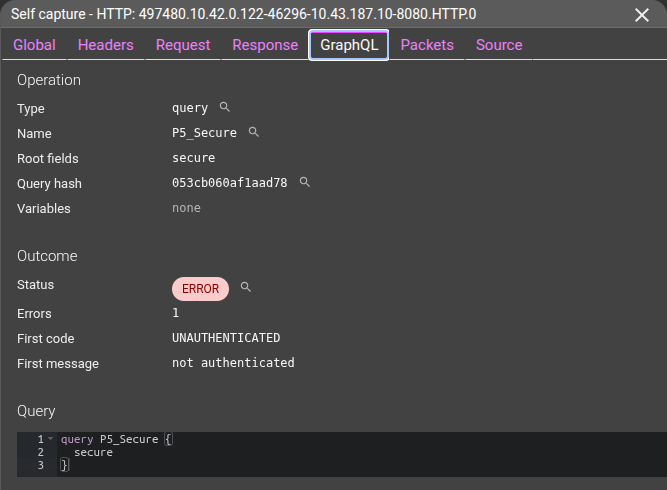
Operation - what the request asked for. Never the variable values, which stay in the request body.
| Field | Description |
|---|---|
| Type | query, mutation, subscription, or batch. Click the filter icon to filter on it. |
| Name | The operation name. Without one, the template is built from the root fields. |
| Root fields | The top-level fields the operation selects. |
| Batch | For a batched request, the operations it carries. |
| Query hash | A stable hash of the document shape: the same query with other variables has the same hash. |
| Persisted hash | The persisted query hash, when the client sent one. |
| Variables | The names of the declared variables. |
Outcome - how the call ended, read from the response body and independent of the HTTP status.
| Field | Description |
|---|---|
| Status | OK, PARTIAL (some data and some errors), ERROR (no usable data) or UNKNOWN (not parseable) |
| Errors | The number of GraphQL errors |
| First code | The code of the first error, e.g. UNAUTHENTICATED |
| First message | The first error message. Values echoed by the server are masked. |
Query - the request document, pretty-printed. A persisted query sent as a hash alone has no document to show.
The HTTP grid also offers a hidden GraphQL status column and a GraphQL section in the filter menu.
For subscriptions over WebSocket or SSE, each message is a stream message carrying the same identity and outcome.
MCP tab
The MCP tab appears on communications recognised as Model Context Protocol calls
(Streamable HTTP), and on the stream messages of MCP answers. It needs the cluster-wide mcpParsing flip and the
whisperer's server.mcp settings.
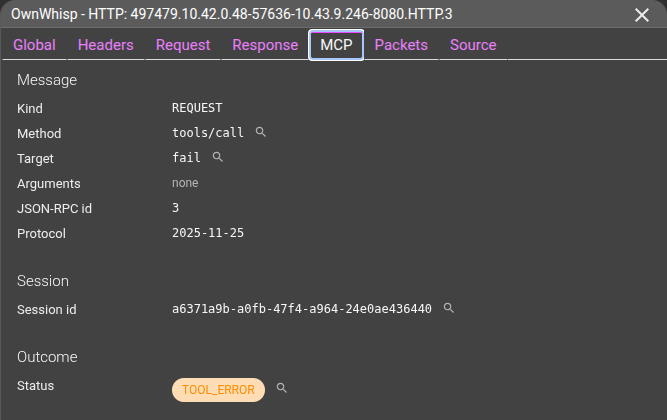
Message - what the client sent. Only names are stored, never argument values or results.
| Field | Description |
|---|---|
| Kind | REQUEST, NOTIFICATION or RESPONSE. On a stream message that answers a call: Answer to a REQUEST. |
| Method | The JSON-RPC method: initialize, tools/call, resources/read... |
| Target | The tool or prompt name, or the resource URI without query string and credentials. |
| Arguments | For tools/call, the names of the arguments. |
| JSON-RPC id | The request id, used to pair a call with its answer. |
| Client | The client name and version announced by initialize. |
| Protocol | The negotiated MCP protocol version. |
Session - the Mcp-Session-Id, issued in the response to initialize and copied onto every call of the session, to find them together.
It is absent on stateless servers, and not shown to users whose access forbids that header.
Outcome - OK, TOOL_ERROR (the tool ran and reported isError), ERROR (a JSON-RPC error, with its code and the server name), INPUT_REQUIRED (the server answered result.resultType: input_required: the call is unfinished) or UNKNOWN.
The HTTP status is not changed: a failed tool call is usually a plain 200.
When the server answers as a text/event-stream, the outcome is on the answer message, not on the POST: the tab says so and points to Related messages.
Related messages - the call, its answer and the other messages of the session sharing its JSON-RPC id, within the same whisperer. Click one to open it.
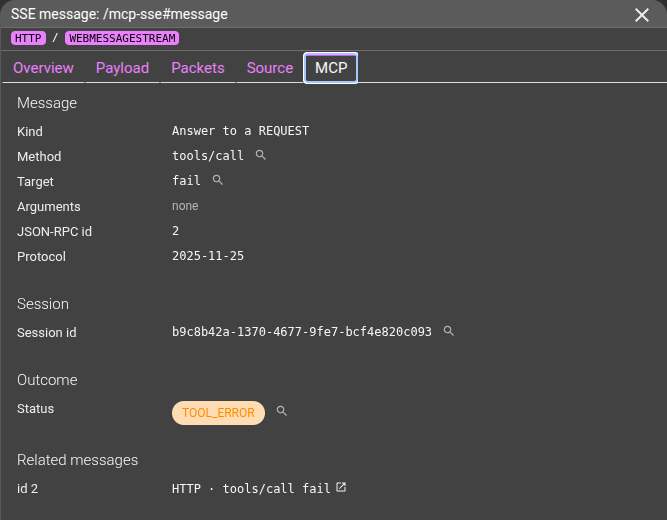
The HTTP grid offers hidden MCP columns and an MCP section in the filter menu: method, tool, session and outcome.
Packets tab
The Packets tab shows the network packets composing the HTTP communication.
You may open them by clicking on the rows.
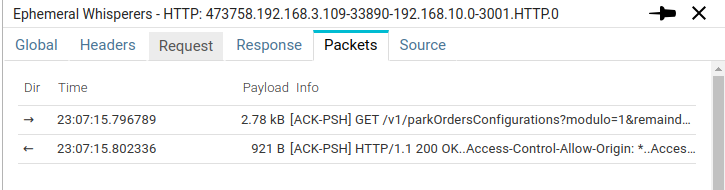
| Field | Description |
|---|---|
| Dir | Diraction of the packet |
| Time | Time the packet was captured |
| Payload | Sized of the TCP payload |
| Info | Flags and beginning of TCP payload, in ASCII |
Specific settings
In the Main settings details panel, a tab is dedicated to HTTP communications display settings.
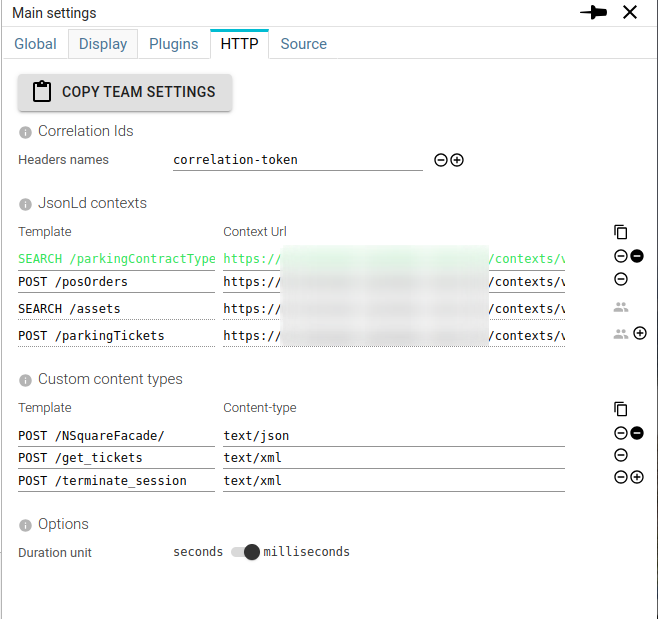
These settings may be defined at the team level or specifically for the customer.
This tab used to carry a Correlation Ids setting listing HTTP header names.
It has been replaced by Correlation in the Global tab, which lists tag names
and applies to every protocol rather than to HTTP alone.
See Upgrading from the HTTP header setting.
JsonLd contexts
For those using JSON LD on their APIs, they may define specific contexts to be used to re-compact the payload based on the identified template.
Custom content types
When missing a Content-Type header in your request / response, Spider allows you to select its content-type manually.
This forces how Spider displays the payload body in Request and Response tabs.
The selection is saved here for reuse, linked to the template of the request it cas defined on.
Duration unit
You may define in what unit to display the duration of Http Communications:
- On the map
- On the dashboard widgets
- On the grid
- On the details
- In the exports
- ...
You may choose between milliseconds and seconds.
Actions
You may import the HTTP settings of any team you have access to by clicking on COPY TEAM SETTINGS.
Source
The Source tab shows the HTTP communication in JSON format.
Below is a sample HTTP communication as it is available through the API:
{
  "@id": "E4Fak43oR5K5hquEGBjbHA.enduser-orders-service-5dbff6d757-4fb8m.473758.192.168.11.75-37024-192.168.10.0-3001.4046159262.HTTP.0",
  "@type": "HttpCommunication",
  "version": "0.1",
  "name": "473758.192.168.11.75-37024-192.168.10.0-3001.HTTP.0",
  "whisperer": "E4Fak43oR5K5hquEGBjbHA",
  "instanceId": "enduser-orders-service-5dbff6d757-4fb8m",
  "tcpSession": "E4Fak43oR5K5hquEGBjbHA.enduser-orders-service-5dbff6d757-4fb8m.473758.192.168.11.75-37024-192.168.10.0-3001.4046159262",
  "httpPers": "E4Fak43oR5K5hquEGBjbHA.enduser-orders-service-5dbff6d757-4fb8m.473758.192.168.11.75-37024-192.168.10.0-3001.4046159262.HttpParsingLog",
  "stats": {
    "statusCode": 200,
    "statusText": "OK",
    "duration": 0.004927,
    "timespan": {
      "gte": "2024-01-17T22:07:15.992Z",
      "lte": "2024-01-17T22:07:15.997Z"
    },
    "src": {
      "ip": "192.168.11.75",
      "port": 37024,
      "origin": "192.168.14.167",
      "name": "gateway-59d55bf845-z5tvs.streetsmart-global-dev.pod.cluster.local",
      "socket": "192.168.11.75:37024",
      "identification": "pollersync_20180824"
    },
    "dst": {
      "ip": "192.168.10.0",
      "port": 3001,
      "name": "enduser-orders-service-5dbff6d757-4fb8m",
      "socket": "192.168.10.0:3001"
    },
    "tags": {
      "values": {
        "park": [
          "100000560"
        ]
      },
      "count": {
        "park": 1
      },
      "cardinality": {
        "park": 1
      }
    }
  },
  "req": {
    "start": 1705529235.992532,
    "end": 1705529235.992532,
    "startMinute": "2024-01-17T22:07:00.000Z",
    "startDate": "2024-01-17T22:07:15.992Z",
    "endDate": "2024-01-17T22:07:15.992Z",
    "method": "GET",
    "uri": "/v1/orders",
    "query": "modulo=1&remainder=0&view=content&afterUpdateMarker[]=280323&afterUpdateMarker[]=1338",
    "hash": null,
    "httpVersion": "1.1",
    "template": "POLL /orders",
    "headers": {
      "authorization": "JWT eyJhbGci...SuDUv4",
      "accept": "application/ld+json",
      "connection": "close",
      "correlation-token": "S0K_L7sidYUfQEU5fbGkjpLvkbdN5kJv",
      "host": "gateway",
      "x-forwarded-host": "gateway",
      "x-forwarded-for": "192.168.14.167",
      "x-forwarded-basepath": "/enduser/orders"
    },
    "size": 2088,
    "body": {
      "size": 0
    },
    "packets": [
      "E4Fak43oR5K5hquEGBjbHA.enduser-orders-service-5dbff6d757-4fb8m.473758.192.168.11.75-37024-192.168.10.0-3001.4046159262-3"
    ],
    "status": "COMPLETE"
  },
  "res": {
    "start": 1705529235.997459,
    "end": 1705529235.997459,
    "startDate": "2024-01-17T22:07:15.997Z",
    "endDate": "2024-01-17T22:07:15.997Z",
    "httpVersion": "1.1",
    "headers": {
      "access-control-allow-origin": "*",
      "access-control-allow-methods": "GET,HEAD,PUT,POST,DELETE",
      "date": "Wed, 17 Jan 2024 22:07:15 GMT",
      "content-length": "552",
      "correlation-token": "S0K_L7sidYUfQEU5fbGkjpLvkbdN5kJv",
      "vary": "Accept-Encoding",
      "content-type": "application/ld+json",
      "connection": "close",
      "x-response-time": "4ms"
    },
    "size": 869,
    "body": {
      "size": 552
    },
    "packets": [
      "E4Fak43oR5K5hquEGBjbHA.enduser-orders-service-5dbff6d757-4fb8m.473758.192.168.11.75-37024-192.168.10.0-3001.4046159262-5"
    ],
    "status": "COMPLETE"
  },
  "dateModified": "2024-01-17T22:07:30.783Z",
  "_update": 5,
  "_eTag": "\"96-cRQNDrTY6A12OJw7g0yxtMDs4+c\""
}
Most fields are self-explanatory. Most fields are indexed and searchable.
Some extra explanation:
| Field | Description |
|---|---|
| stats | Stats object regroup most important information |
| stats.timespan | Indexed as range, to allow range searching and aggregations |
| stats.src|dst.name | Hostname resolved on the Whisperer |
| stats.tags.* | Extracted tags values, count and cardinality |
| req\res.status | Parsing status |
| _update | Internal field linked to parsing concurrency control |